As a new user of Windows 11, you can easily personalize your display settings for improved comfort and usability. This guide outlines how to access display settings, change screen resolution, adjust brightness, manage multiple displays, and troubleshoot common display issues.
How do I access the display settings in Windows 11? [prerequisites]
To access the display settings in Windows 11, you can use the Settings app or quick access options. Here are the prerequisites:
- A device running Windows 11.
- Administrative privileges to change certain settings.
- Basic familiarity with navigating the Windows interface.
Using the Settings App
- Click on the Start button or press the Windows key on your keyboard.
- Select Settings (the gear icon).
- In the Settings window, click on System.
- Click on Display to access the display settings.
Quick Access Options
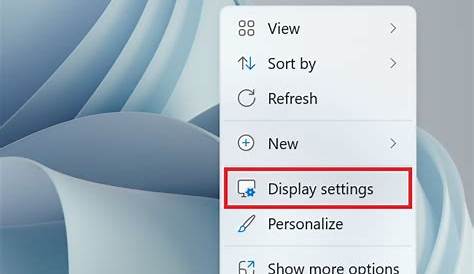
- Right-click on the desktop and select Display settings from the context menu.
- Press Windows + I to open Settings directly, then navigate to System > Display.
How to change screen resolution and scaling? [steps]
Adjusting your screen resolution and scaling can improve visibility and fit your preferences. Here's how to do it:
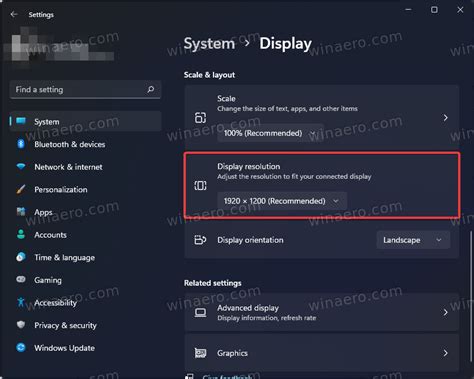
- In the Display settings menu, locate the Scale and layout section.
- Under Display resolution, click on the drop-down menu to see available resolutions.
- Choose your desired resolution. Windows will usually recommend the best one based on your display.
- Below the resolution options, find Scale. Click on the drop-down menu and select your preferred scaling percentage to adjust the size of text, apps, and other items on the screen.
- Click Keep changes if you’re satisfied with the new settings. Otherwise, select Revert to go back.
How can I adjust brightness and enable night light? [steps]
Adjusting the brightness and using the night light feature can help reduce eye strain, especially in low-light conditions. Here’s how:
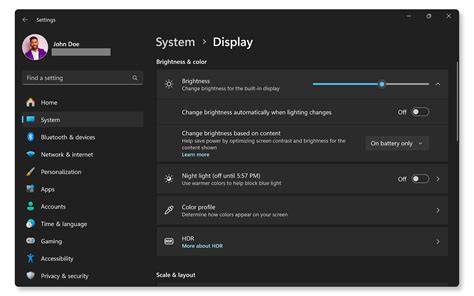
- In the Display settings, find the Brightness and color section.
- Use the Change brightness slider to adjust the brightness level to your liking.
Enabling Night Light
- Under the brightness slider, toggle the Night light switch to On.
- Click on Night light settings to customize the strength and schedule of the feature. You can set it to turn on automatically at sunset or at a specific time.
What if I have multiple displays? [steps]
If you use multiple monitors, you can configure them for extended or duplicated displays. Here’s how:
- In the Display settings, scroll down to the Multiple displays section.
- Click on the drop-down menu to choose between options like Duplicate these displays or Extend these displays.
- If you select Extend, you can rearrange your displays by dragging and dropping them in the display diagram above.
- Click on each display in the diagram to adjust individual settings such as resolution and orientation.
- Click Apply to save your changes.
What to do if my display settings aren't applying? [completion]
Sometimes, display settings may not apply as expected. Here are some troubleshooting tips:
- Ensure your graphics drivers are up to date. You can check for updates through the Device Manager.
- Restart your computer to see if the changes take effect after a reboot.
- If settings revert, try adjusting them again and select Keep changes quickly after applying them.
- Check for any external software that may be interfering with display settings, such as third-party graphics management tools.
- If issues persist, consider resetting the display settings to their default values and try again. You can find the reset option in the display settings menu.
Conclusion
Now that you know how to adjust your display settings in Windows 11, feel free to experiment with different configurations until you find what works best for you. If you encounter any difficulties, revisit the troubleshooting tips or seek further assistance as needed.
Frequently Asked Questions
Can I change the display settings for each monitor separately?
Yes, you can adjust the display settings for each monitor individually when using multiple displays.
What should I do if my screen resolution options are limited?
Ensure your graphics drivers are updated and check if the display is connected properly. Sometimes, using a different cable or port can help.
How can I reset my display settings to default?
Go to Display settings, scroll down, and look for an option to reset settings to default values.
Is there a way to schedule the night light feature?
Yes, in the Night light settings, you can set a custom schedule for when the night light turns on and off.