As a concerned parent, you want to protect your children while allowing them to explore the internet safely. Understanding best practices for safe browsing is essential to shield your family from online dangers. This article provides practical tips and strategies for promoting safe internet use at home.
What are the most common online threats?
Online threats come in various forms, making awareness critical for your family's safety. Malware, which includes malicious software designed to harm or exploit devices, is one of the most common threats. Phishing scams pose another significant danger, where attackers deceive users into providing personal information through fake emails or websites. Other scams may involve fraudulent online offers or services aimed at stealing money or data. Recognizing these threats helps you and your family avoid them, ensuring safer online experiences.
How can I adjust my browser settings for safety?
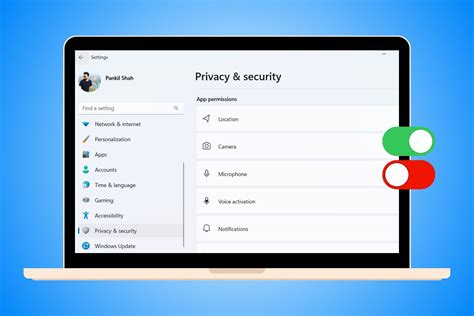
Configuring your browser settings can significantly enhance your family's online safety. Follow these steps to adjust your settings:
- Open your browser settings.
- Look for the 'Privacy' or 'Security' section.
- Adjust privacy settings to limit tracking.
- Enable pop-up blockers to prevent unwanted ads and malware.
- Manage cookies by blocking third-party cookies, if necessary.
- Regularly clear your browser history and cache to remove stored data.
- Enable 'Do Not Track' requests in your browser settings to help protect your privacy.
What tools can help enhance my online security?
Several tools and browser extensions can improve your family's online security:
Ad Blockers
These extensions block intrusive ads, which often contain malware.
Password Managers
These tools create and store strong, unique passwords for various sites, minimizing the risk of breaches.
Anti-Malware Software
This software provides an additional layer of protection against malicious threats.
VPNs (Virtual Private Networks)
VPNs encrypt your internet connection, making it harder for attackers to access your data.
Choose tools that fit your family's specific needs and ensure they come from reputable sources.
How do I spot phishing attempts?
Phishing attempts can be deceptive, but there are common signs to help you identify them:
- Unusual sender addresses: Check if the email address looks strange or doesn't match the organization's official domain.
- Poor grammar and spelling: Many phishing emails contain errors that a legitimate company would likely avoid.
- Urgent language: Be cautious of messages that create a sense of urgency, pushing you to act quickly.
If you notice any of these signs, do not click on any links or provide personal information. Always verify by contacting the organization directly through official channels.
What are safe practices for social media use?
Social media can be a great way for your family to connect, but it requires careful management of personal information. Here are some safe practices:
- Adjust privacy settings to restrict who can see your posts and personal information.
- Avoid sharing sensitive information, such as your home address or phone number.
- Be cautious about accepting friend requests from unknown individuals.
- Regularly review your friends and followers to remove any suspicious accounts.
- Teach your kids the importance of thinking before sharing any content online.
Conclusion
By following these best practices, you can create a safer online environment for your family. Regular discussions about online safety with your children empower them to make informed choices while browsing. Stay updated on new threats and tools to maintain a secure digital experience.
Frequently Asked Questions
What should I do if I suspect a phishing attempt?
If you suspect a phishing attempt, do not click on any links or provide any information. Report the email to your email provider and delete it. If you've already clicked on something, run a malware scan on your device.
How often should I update my browser and security tools?
You should regularly check for updates to your browser and security tools, ideally every few weeks, to ensure you have the latest security features and patches.
Can I use the same password for multiple accounts?
It's not advisable to use the same password across multiple accounts, as this increases the risk if one account is compromised. Use a password manager to help manage unique passwords.
What is a VPN and do I need it?
A VPN, or Virtual Private Network, encrypts your internet connection, enhancing privacy and security, especially on public Wi-Fi. It's recommended if you often use unsecured networks.