As a Windows 11 user, creating a system restore point is a smart step to take before making significant changes such as installing updates or new software. A restore point serves as a safeguard, enabling you to revert your system to a previous state if something goes wrong. Here’s how to set one up quickly and efficiently.
Why You Should Create a System Restore Point
Creating a system restore point offers essential protection against potential system issues. It serves as a backup of your system settings and files at a specific moment. If an update or installation causes problems, you can easily revert to this restore point, undoing any unwanted changes. This process is quick and can often be completed in just a few minutes.
Before getting started, ensure you have the following:
- A Windows 11 computer.
- Administrative privileges on your user account.
- Sufficient disk space for storing restore points.
Steps to Create a System Restore Point in Windows 11
Creating a system restore point is straightforward. Just follow these steps:
- Open the Start menu by clicking on the Windows icon on your taskbar.
- Type
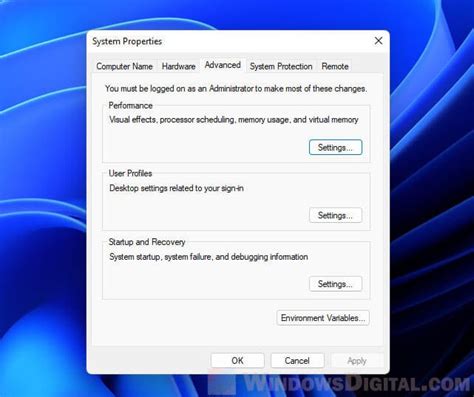
Create a restore pointin the search bar and select the matching result. - In the System Properties window that appears, ensure you're on the "System Protection" tab.
- Under the "Protection Settings" section, select the drive you want to create a restore point for (typically the C: drive) and click the "Create" button.
- Enter a description for the restore point in the prompt that appears, then click "Create" again to confirm.
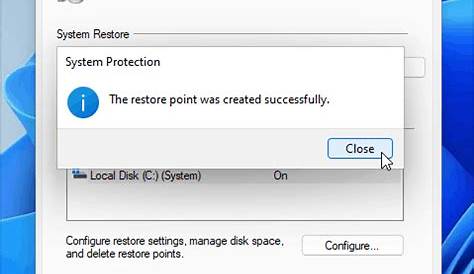
- Wait for the process to complete. A message will appear once the restore point has been successfully created.
Restore point created successfully.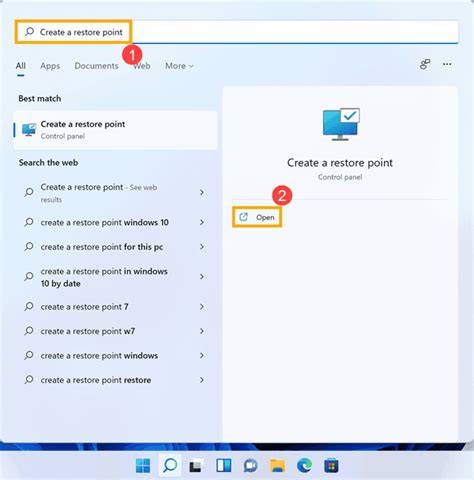
How to Access and Manage Your Restore Points
To access and manage your existing restore points, follow these steps:
- Go back to the Start menu and type
Create a restore pointagain, selecting the same result. - In the System Properties window, under the "System Protection" tab, click the "System Restore" button.
- Follow the prompts to view available restore points. You can choose to restore your system to a previous point from here.
- If you want to delete an old restore point, return to the "System Protection" tab and click the "Configure" button. Here, you can manage disk space and delete specific restore points.
Common Issues When Creating Restore Points
While creating a restore point is typically straightforward, you may encounter some issues:
- Insufficient Disk Space: If you lack enough disk space, the option to create a restore point might be disabled. Free up space on your drive to resolve this.
- System Protection Disabled: If system protection is turned off for your drive, you won’t be able to create a restore point. Make sure it is enabled in the System Properties under the "System Protection" tab.
What to Do If Restoration Fails
If you attempt to restore your system and it fails, consider these steps:
- Restart your computer and try the restoration process again. A reboot can sometimes resolve issues.
- If the problem persists, boot your computer into Safe Mode and try restoring from there.
- If you still face difficulties, you may need to explore other recovery options, such as using Windows Recovery Environment tools or reinstalling Windows.
Conclusion
After creating a system restore point, you can confidently make changes to your system, knowing you have a fallback option. Regularly creating restore points, especially before major updates or installations, is a good practice. If you encounter issues, remember to access your restore points to revert your system back to a stable state.
Frequently Asked Questions
How often should I create a system restore point?
It's advisable to create a restore point before significant updates, new software installations, or making major changes to your system.
Can I create a restore point for a specific file?
No, restore points are system-wide and do not target individual files. They capture system settings and installed programs.
What happens if I run out of disk space for restore points?
If you run out of disk space, Windows will automatically delete the oldest restore points to make room for new ones.
Is it safe to restore my system to an earlier point?
Yes, restoring your system to an earlier point is safe, but it will undo any changes made after that point.