If you've recently updated a driver and are facing issues, rolling back to a previous version can often resolve these problems. Symptoms like performance degradation, hardware malfunctions, or crashes may indicate that the latest driver isn't compatible with your system. This guide will walk you through the steps to roll back your driver effectively and troubleshoot if necessary.
How do I know if I need to roll back my driver?
You might need to roll back your driver if you notice issues such as slower computer performance, malfunctioning hardware, or frequent crashes. Other signs include unusual error messages related to the hardware or features that stopped working after the update. Identifying the current driver version you want to revert from can also help confirm the need for a rollback.
How to access Device Manager for driver rollback
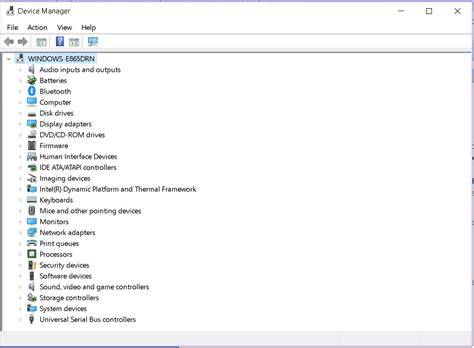
To roll back a driver, you first need to access Device Manager. Here are the steps to do this on Windows:
- Press
Windows + Xto open the Power User menu. - Click on
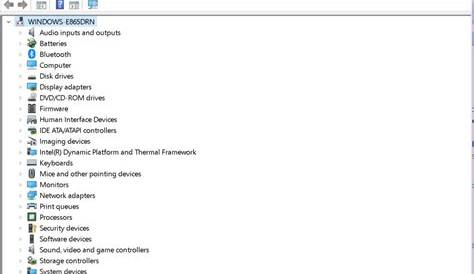
Device Managerfrom the list. - In Device Manager, locate the category of the device whose driver you want to roll back (for example, Display adapters for graphics drivers).
- Expand the category and right-click on the specific device.
- Select
Propertiesfrom the context menu.
Rolling back the driver: A simple guide
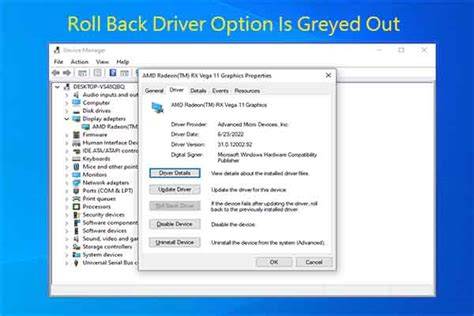
Once you have the device properties window open, follow these steps to roll back the driver:
- In the device properties window, navigate to the
Drivertab. - Click on the
Roll Back Driverbutton. - If prompted, select a reason for the rollback and click
Yesto confirm. - Wait for the process to complete, then restart your computer to allow the previous driver to take effect.
What if the rollback option is greyed out?
If the Roll Back Driver option is greyed out, it usually means there is no previous driver version available to revert to. In this case, you can manually install an older driver version. Here’s how:
- Go to the manufacturer's website for your specific device (like NVIDIA for graphics cards).
- Locate the support or download section.
- Find the section for drivers and select the version you want to install.
- Download the older driver and run the installation file.
- Follow the prompts to install the driver.
Confirming the rollback and next steps
After rolling back the driver, check if the issues have been resolved. Here’s how:
- Test the device by performing the actions that previously caused problems.
- If the device functions correctly, the rollback was successful.
- If issues persist, check for further updates and look for compatibility issues with other software or hardware. You may also want to run Windows Update to ensure everything else is up to date.
Conclusion
If the rollback resolves your issues, you should be all set. If not, consider additional troubleshooting steps, such as checking for software conflicts or reaching out to support for assistance. Keeping your drivers updated is important, but sometimes reverting to a previous version works better for your specific setup.
Frequently Asked Questions
How can I know which driver version I am currently using?
You can find your current driver version in the Device Manager under the `Driver` tab in the device properties.
Can I roll back drivers on Windows 11?
Yes, the process for rolling back drivers is similar in Windows 11 as it is in Windows 10.
What should I do if the rollback doesn't help?
If the rollback doesn't help, check for further updates, reinstall the driver, or investigate potential hardware issues.
Is it safe to roll back drivers?
Yes, rolling back drivers is generally safe and can help resolve issues caused by recent updates.