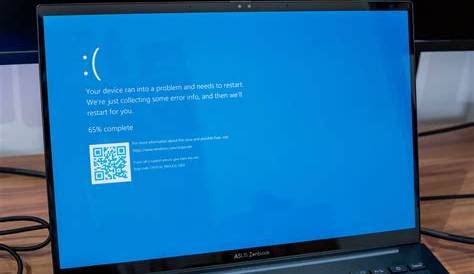
If you've encountered a Blue Screen of Death (BSOD) on Windows 11, you might be worried about losing your data or needing to reinstall the operating system. Fortunately, there are several troubleshooting steps you can follow to diagnose and resolve the issue. Begin by identifying the cause of the error and then implement the methods outlined here to restore your system's functionality.
What Causes the Blue Screen of Death in Windows 11?
The Blue Screen of Death typically appears due to several common issues, including hardware failures, software conflicts, or driver problems. You might see it after installing new hardware or software, or if your system has a corrupted file. For instance, a recent Windows update that conflicts with existing drivers can trigger a BSOD.
Errors can also arise from overheating components, failing hard drives, or memory issues. In some cases, a problematic update may cause instability, leading to these critical errors.
Before You Start
This guide applies to Windows 11 users experiencing a BSOD, requiring Administrator privileges for some fixes. It's essential to back up your data before proceeding. Ensure your device is plugged into a power source and that you have access to an external drive for backups.
How Can I Troubleshoot Blue Screen Errors?
To troubleshoot BSOD errors, follow these steps carefully:
- Boot into Safe Mode to diagnose the issue. This starts Windows with a minimal set of drivers. ``
text Press Windows + R, type msconfig, and hit Enter.`` - In the System Configuration window, go to the Boot tab and check Safe boot. - Click OK and restart your computer. - Uninstall recent software or drivers that may have caused the problem. - Open Control Panel > Programs > Programs and Features. - Find the recently installed software, select it, and click Uninstall.
- Run the Windows Memory Diagnostic to check for memory issues. ``
text Press Windows + R, type mdsched.exe, and hit Enter.`` - Select Restart now and check for problems. - Use System Restore to revert your system to a previous state if the problem persists. ``
text Type rstrui in the Run dialog (Windows + R) to open System Restore.`` - Follow the prompts to choose a restore point.
How to Ensure My Data is Safe Before Fixing?
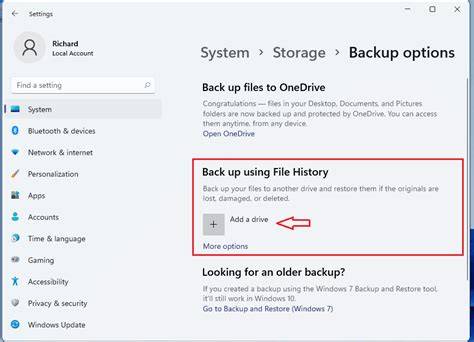
Before attempting any fixes, it’s crucial to back up your data to avoid potential loss. Here are a few methods:
- Use File History: - Connect an external hard drive. - Go to Settings > Update & Security > Backup. - Click on Add a drive and select your external drive. Turn on Back up using File History.
- Create a System Image: - Go to Control Panel > Backup and Restore (Windows 7). - Click on Create a system image on the left and follow the prompts.
- Copy important files manually to an external drive or cloud storage if your system is still accessible.
What Should I Do If the Problem Persists?
If you continue to experience BSOD errors after troubleshooting, consider the following steps:
- Check for hardware issues: Run hardware diagnostics if available from your device manufacturer.
- Perform a clean install of Windows: This should be a last resort. Make sure to back up your important data before proceeding.
A clean install will erase all files on your system drive.
If the problem persists after a clean install, consulting a professional technician for further diagnosis may be necessary.
How Can I Prevent Future Blue Screen Errors?
To minimize the risk of encountering BSOD errors in the future, consider these preventive measures:
- Regularly update Windows: Ensure your system is up-to-date to receive the latest security and stability patches.
- Keep drivers updated: Use Device Manager or the manufacturer's website to check for updated drivers.
- Run regular hardware checks: Tools like Windows Memory Diagnostic can help identify issues before they escalate.
- Maintain proper airflow and cooling: Ensure your system doesn’t overheat by cleaning dust from fans and ensuring proper ventilation.
Conclusion
After following these steps, you should have a clearer understanding of the cause of your BSOD and how to resolve it. Keep your system updated and regularly back up your data to prevent future problems. If issues persist, don't hesitate to seek professional help.
Frequently Asked Questions
What should I do if I can't boot into Windows?
You can try accessing the Advanced Startup Options by repeatedly pressing F11 (or F8) during startup. From there, you can enter Safe Mode or use System Restore.
Can I recover files from a crashed system?
Yes, if your hard drive is intact, you can use a bootable USB with recovery software or connect the drive to another computer to access your files.
What does the BSOD error code mean?
Each BSOD error code points to a specific issue. You can look up the code online for more detailed information about the potential cause.
Is it safe to ignore a BSOD?
Ignoring a BSOD is not recommended, as it often indicates underlying issues that could worsen over time.