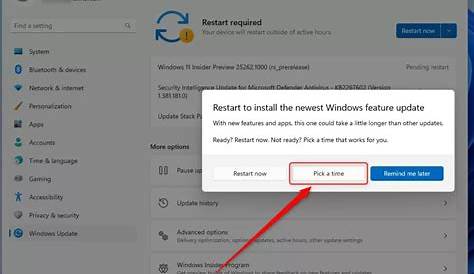
If you're encountering update errors in Windows 11, there are specific solutions you can implement to resolve them. These issues can arise from various factors, including incompatible hardware or disabled services. Let's break down common error codes, troubleshooting steps, and how to check for system compatibility.
What are the common Windows 11 update errors?
Some frequent error codes you might encounter during Windows 11 updates include:
Error 0x80070020: This indicates that another process is preventing the update.
Error 0x80070422: This means that a required service is disabled.
Error 0x8024402C: This points to an issue with your internet connection or Windows Update service.
Error 0xC1900101: This often relates to hardware compatibility issues.These errors typically appear when checking for updates or during the installation process, leading to frustrating interruptions.
When should you troubleshoot Windows 11 update errors?
You should consider troubleshooting when:
- Your updates fail to install or repeatedly rollback.
- You see specific error codes during the update process.
- Windows Update settings indicate updates are available, but installation does not proceed.
These signs indicate that something is wrong, and addressing these issues promptly can help maintain system performance.
How to fix Windows 11 update errors step-by-step
Start by ensuring you have Administrator privileges. Follow these steps to troubleshoot common update errors:
- Run the Windows Update Troubleshooter: This built-in tool can identify and fix common update problems. - Go to Settings > Update & Security > Troubleshoot > Additional troubleshooters. - Select Windows Update and click Run the troubleshooter.
- Check for disabled services: Make sure necessary services are running. - Open the Run dialog by pressing
Windows + R, then typeservices.mscand hit Enter. - Ensure the following services are set to Automatic and are running: - Windows Update - Background Intelligent Transfer Service - Cryptographic Services - Reset Windows Update components: This can help fix underlying issues. - Open Command Prompt as Administrator and run: ``
cmd title="Command Prompt" net stop wuauserv net stop cryptSvc net stop bits net stop msiserver net start wuauserv net start cryptSvc net start bits net start msiserver`` - Perform a System File Check: Corrupted files can lead to update issues. - Open Command Prompt as Administrator and type: ``
cmd title="Command Prompt" sfc /scannow`` - Check Disk for Errors: A disk check can resolve issues with your hard drive. - In Command Prompt, run: ``
cmd title="Command Prompt" chkdsk /f`` - You will need to restart your PC for this to take effect.
How to verify if the update issue is resolved
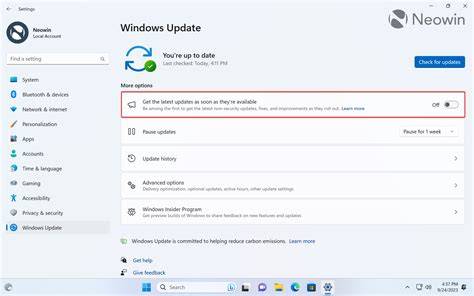
To confirm if your update issue is resolved, follow these steps:
- Go to Settings > Update & Security > Windows Update.
- Click Check for updates.
- If updates are found and successfully installed without errors, your update issue is likely resolved.
- You can also check the update history by navigating to Settings > Update & Security > Windows Update > View update history. Look for recent updates that state they installed successfully.
Tips to prevent future Windows 11 update issues
To minimize the chances of encountering update issues in the future:
- Regularly check for updates: Make this a routine to ensure your system stays current.
- Keep your drivers updated: Outdated drivers can cause conflicts during updates.
- Free up disk space: Ensure you have adequate space for updates to install.
- Maintain good internet connectivity: A stable connection is crucial during the update process.
- Use antivirus software that doesn’t interfere with Windows Update operations.
Conclusion
If you continue to experience issues, revisit these troubleshooting steps. Keeping your system updated and well-maintained will enhance overall performance. Don't hesitate to seek additional support if problems persist.
Frequently Asked Questions
What should I do if my Windows 11 update keeps failing?
Try running the Windows Update Troubleshooter, check your internet connection, and ensure that necessary services are running.
How can I check if my system is compatible with Windows 11 updates?
You can check compatibility using the PC Health Check app from Microsoft, which evaluates your hardware against Windows 11 requirements.
What are the common causes of Windows 11 update errors?
Common causes include conflicts with existing software, lack of disk space, disabled services, and hardware compatibility issues.
Is it safe to reset Windows Update components?
Yes, resetting Windows Update components is a safe and often necessary step to resolve update errors.