If you've recently updated your drivers and are experiencing performance issues, faulty drivers may be the cause. Symptoms include system crashes, freezes, and hardware malfunctions. To resolve these issues, you can identify the problematic drivers and either roll them back or update them.
What symptoms indicate faulty drivers?
Common signs that indicate you might have faulty drivers include:
- System crashes or blue screens of death (BSOD).
- Frequent freezes or unresponsiveness during tasks.
- Hardware components like printers, graphics cards, or network adapters failing to operate correctly.
- Error messages relating to specific hardware functionality.
Error: SYSTEM_SERVICE_EXCEPTIONFor example, if your computer suddenly reboots while playing a game or using a specific application, it may suggest a driver issue.
Before you start
This troubleshooting guide applies to Windows 10 and later versions. You need Administrator privileges to perform these steps. Ensure that you have a recent backup of your system in case you need to restore it. Before beginning, check for any visible issues with your hardware.
How to check which drivers were updated?
To identify which drivers were recently updated, follow these steps:
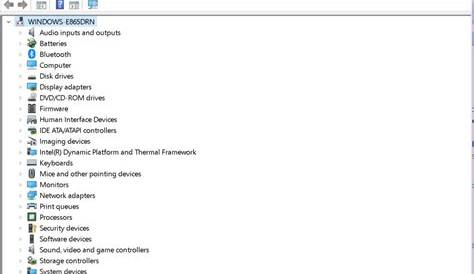
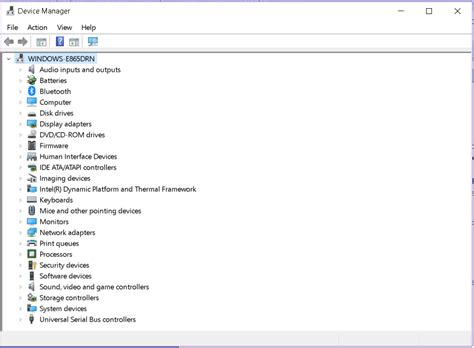
- Open the Device Manager. You can do this by right-clicking on the Start menu and selecting it from the list.
- In Device Manager, click on View and select Devices by type.
- Look for any devices with a warning icon or those that seem to be malfunctioning. Right-click on such devices and select Properties to see more details.
- To check the update history, you can use the following command: ``
cmd title="Command Prompt" driverquery /FO LIST /V``
This command will display a detailed list of drivers, including the last update date.
Steps to identify and isolate problematic drivers
To find which drivers may be causing issues, use Device Manager and Event Viewer:
- In Device Manager, expand categories to find devices with issues. Look for devices with a yellow triangle.
- Right-click on the problematic device and choose Properties. Check the Device status for errors.
- Next, open Event Viewer by typing "Event Viewer" in the Start menu search.
- In Event Viewer, navigate to Windows Logs > System and look for errors or warnings that occurred around the time you experienced issues.
- Note any driver-related errors you find, as they can help you identify the faulty driver.
How to roll back or update drivers to fix issues
If you identify a problematic driver, you can either roll it back to a previous version or update it:
To roll back a driver:
- In Device Manager, right-click on the device and choose Properties.
- Go to the Driver tab and click on Roll Back Driver if the option is available.
- Follow the prompts to complete the rollback.
To update a driver:
- Right-click on the device in Device Manager and select Update Driver.
- Choose Search automatically for updated driver software. Windows will check for and install any available updates.
- Restart your computer after the update.
What to do if the problem persists?
If issues continue after rolling back or updating drivers, consider these additional steps:
- Check for Windows updates, as these can sometimes fix underlying issues.
- Use System Restore to revert your system to a point before the updates were applied.
- Uninstall the problematic software or hardware temporarily to see if it resolves the issue.
- If problems remain, seek help from community forums or support services, as they may provide insights specific to your hardware.
Conclusion
After trying these troubleshooting steps, if your performance issues are resolved, great! If not, continue exploring other potential solutions or seek assistance to ensure your system runs smoothly.