Upgrading to Windows 11 can be overwhelming, but you can master its features with some guidance. This article provides a clear overview of how to navigate the Start Menu and Taskbar, configure essential settings for better performance, and customize your desktop and workspace. With this information, you'll feel more at ease and ready to explore Windows 11.
Navigating the New Start Menu and Taskbar
The Start Menu and Taskbar in Windows 11 have a fresh look and improved functionality.
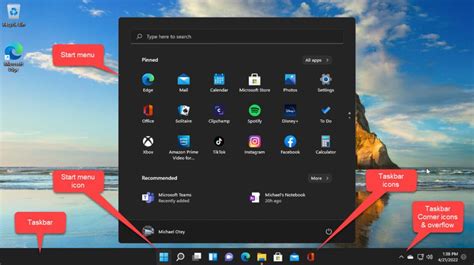
To access the Start Menu, click on the Windows icon located in the center of the Taskbar. Here, you’ll find pinned apps, recommended files, and a search bar at the top for quick access to programs and settings.
- Click the Start Menu icon.
- Use the Search bar to find applications or files by typing their names.
- To pin an app, right-click on it and select Pin to taskbar or Pin to Start.
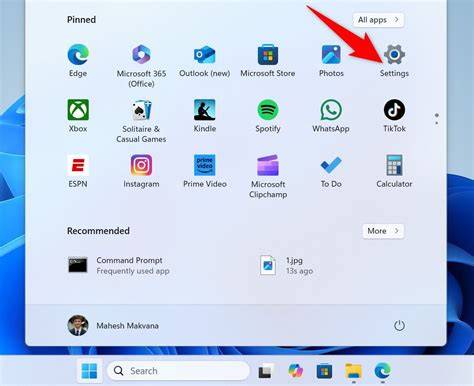
- To access all apps, click on All apps at the top right of the Start Menu. You can scroll through or search for your desired application.
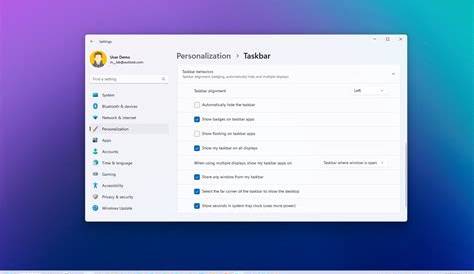
- The Taskbar has icons for commonly used apps; you can rearrange them by clicking and dragging. Right-click an icon for more options like unpinning or closing.
These features streamline your workflow by keeping your most-used applications readily accessible.
Essential Settings to Configure for Performance
Configuring settings in Windows 11 can significantly enhance performance and security. Here’s how to adjust key settings:
- Windows Update: Ensure your system is up to date. Go to Settings > Windows Update and click Check for updates.
- Privacy Settings: Adjust your privacy settings under Settings > Privacy & security to control what data apps can access. Disable permissions for apps that don’t require them.
- Power Settings: For laptops, adjust power settings under Settings > System > Power & battery. Choose a power plan that suits your usage to conserve battery life.
- Storage Sense: Enable Storage Sense to automatically free up space. Go to Settings > System > Storage and toggle on Storage Sense.
- Display Settings: To improve visual comfort, go to Settings > System > Display and adjust the scale and layout for text, apps, and other items.
These configurations will help maintain optimal performance while keeping your system secure.
Customizing Your Desktop and Workspace
Personalizing your desktop can make your environment more comfortable and efficient. Here are steps to customize your workspace:
- Change the Wallpaper: Right-click on the desktop and select Personalize. Under the Background section, choose a new image or color.
- Adjust Icon Size: Right-click on the desktop, hover over View, and select Small icons, Medium icons, or Large icons to fit your preference.
- Create Desktop Folders: Group similar files by creating folders. Right-click on the desktop, select New, then Folder. Name it and drag files into it.
- Arrange Icons: Right-click on the desktop, hover over View, and enable or disable Auto arrange icons and Align icons to grid to control how your icons are organized.
- Use Virtual Desktops: Press Windows + Tab to create and manage multiple desktops for different tasks, allowing you to keep related work organized.
These steps will help create a personalized workspace that suits your style and needs.
Exploring Built-in Apps and Features
Windows 11 comes with a variety of built-in apps and features that can boost productivity. Here are some key ones:
- Microsoft Edge: The default web browser, which includes features like vertical tabs and a built-in reading mode.
- Snipping Tool: For capturing screenshots. Access it through the Start Menu or by pressing Windows + Shift + S.
- Microsoft Teams: Integrated for easy communication and collaboration with colleagues and friends.
- Widgets: Found on the Taskbar, offering quick access to news, weather, and calendar events.
- Settings App: A central hub for managing system settings and preferences, making it easier to find what you need.
Familiarizing yourself with these apps can significantly enhance your experience with Windows 11.
Common Issues New Users Face and How to Resolve Them
As a new user, you might encounter a few common challenges. Here’s how to tackle them:
- Slow Performance: If your system feels sluggish, ensure that unnecessary startup programs are disabled. Go to Task Manager, click on the Startup tab, and disable items you don’t need.
- Missing Files: If you can’t find your files, use the Search bar in the Start Menu to locate them quickly.
- Wi-Fi Connectivity Issues: If you have trouble connecting to Wi-Fi, click on the network icon in the Taskbar, ensure the Wi-Fi is enabled, and select your network.
- Application Crashes: If an app crashes frequently, try updating it through the Microsoft Store or reinstalling it.
These solutions can help you overcome initial hurdles and settle into Windows 11.
Conclusion
Now that you have a foundational understanding of Windows 11's features and settings, you can explore further at your own pace. Spend some time getting comfortable with the interface and don’t hesitate to experiment with the customization options. Windows 11 is designed to be tailored to your preferences, making it a powerful tool for your daily activities.
Frequently Asked Questions
What are the system requirements for Windows 11?
Windows 11 requires a compatible 64-bit processor, 4 GB of RAM, 64 GB of storage, a DirectX 12 compatible graphics card, and a display of at least 720p resolution.
How do I reinstall Windows 11 if I encounter issues?
You can reinstall Windows 11 by going to **Settings > System > Recovery** and selecting **Reset PC**. Choose whether to keep your files or remove everything.
Can I change the language of Windows 11?
Yes, you can change the language by going to **Settings > Time & language > Language & region** and selecting your preferred language.
How do I access the Control Panel in Windows 11?
You can access the Control Panel by typing 'Control Panel' in the Start Menu search bar and selecting it from the results.