If your Windows 11 laptop is taking too long to start up, managing startup programs can help speed things up. Disabling unnecessary programs that launch at startup can significantly improve boot times. Here’s how to access and manage these settings effectively.
How do I find startup programs in Windows 11? [prerequisites]
To start managing startup programs, you need to access the Task Manager or the Settings app. Make sure you are logged in with an account that has administrator privileges. You don't need any additional software—just your Windows 11 laptop.
How to disable unwanted startup programs? [steps]
Disabling startup programs is straightforward. Follow these steps:
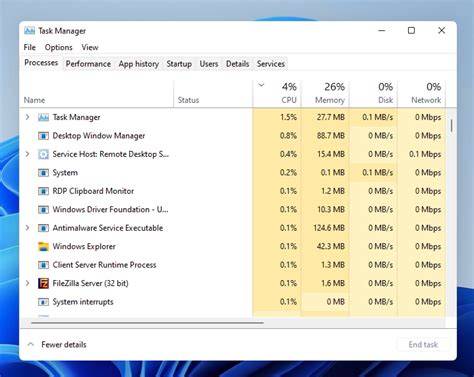
- Open Task Manager. Right-click the Taskbar and select
Task Manager. - Go to the Startup tab. Click on the
Startuptab at the top of the Task Manager window. - Review the list of programs. You'll see a list of programs that start with your computer and their current status (Enabled or Disabled).
- Select a program to disable. Click on any program you want to disable.
- Disable the program. Click the
Disablebutton at the bottom right of the window.
Disabling essential software may affect system functionality. Ensure you know what each program does before disabling it.
What programs should I consider disabling? [completion]
Some common programs that may not be necessary at startup include:
- Cloud storage services (like Dropbox or Google Drive) if you don’t need them immediately.
- Messaging apps (like Skype or Slack) unless you require them for immediate communication.
- Software updaters (like Adobe Updater) that can run manually.
To identify unnecessary programs, ask yourself if you use each program daily or if it can wait until after your computer has booted. Disabling programs that you rarely use can significantly speed up your startup.
Can I enable startup programs again if needed? [faq]
Yes, you can re-enable any startup program you previously disabled. To do this:
- Open Task Manager. Right-click the Taskbar and select
Task Manager. - Go to the Startup tab. Click on the
Startuptab. - Select the disabled program. Find the program you want to re-enable in the list.
- Enable the program. Click on the program and then click the
Enablebutton at the bottom right.
What should I do if my startup remains slow? [faq]
If managing startup programs doesn't improve your boot times, consider these additional steps:
- Check for malware. Run a full system scan using Windows Defender or another reputable antivirus program.
- Update drivers. Ensure all your device drivers are current, as outdated drivers can slow down your startup.
- Disable unnecessary services. Use the
msconfigtool to disable services that aren’t needed at startup. - Upgrade hardware. If your laptop is older, consider upgrading the RAM or switching to an SSD for faster boot times.
Conclusion
By managing your startup programs effectively, you can enhance your Windows 11 boot experience. Regularly reviewing these settings and adjusting them as necessary will help keep your laptop running smoothly. If issues persist, exploring other performance options may be beneficial.
Frequently Asked Questions
How can I tell if a startup program is necessary?
Look up the program online to understand its purpose, or consider if you need it immediately upon starting your computer.
What happens if I disable a critical startup program?
Disabling a critical program may lead to functionality issues. You can always re-enable it through Task Manager if needed.