If your computer is running slow, the Performance Troubleshooter is a valuable tool that can help identify and address the problem. It scans your system for common performance issues and provides actionable recommendations. This guide will walk you through accessing the tool, understanding its results, and taking steps to enhance your computer's speed.
What is the Performance Troubleshooter?
The Performance Troubleshooter is a built-in tool in Windows that helps diagnose and resolve performance issues on your computer. It analyzes various aspects of your system, including startup times, application responsiveness, and resource usage, to identify the root causes of sluggishness. By pinpointing these issues, the troubleshooter provides recommendations that can optimize your computer's performance.
Before you start
The Performance Troubleshooter applies to Windows 7, 8, and 10. You need Administrator privileges to run it. Ensure that your system is backed up before making any changes, and check for pending Windows updates to avoid conflicts.
How do I access the Performance Troubleshooter?
You can access the Performance Troubleshooter in several ways:
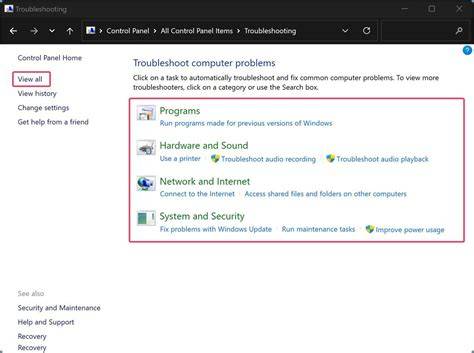
- Open the Control Panel.
- In the search box, type
troubleshoot. - Click on
Troubleshootto open the troubleshooting options. - Select
System and Security. - Click on
Run maintenance tasksto access the Performance Troubleshooter.
Alternatively, you can use the Run command:
- Press
Windows + Rto open the Run dialog. - Type
msdt.exe /id PerformanceDiagnosticand pressEnter. This directly opens the Performance Troubleshooter.
What performance issues can it diagnose?
The Performance Troubleshooter can identify several common performance problems, including:
- Slow boot times, often caused by too many startup programs.
- Application lag, typically due to insufficient resources or background processes consuming excessive CPU or memory.
- High disk usage, which can result from unoptimized programs or background updates.
- Hardware issues, such as outdated drivers or conflicts between devices.
By diagnosing these problems, the troubleshooter guides you toward effective solutions.
How do I interpret the results?
After running the Performance Troubleshooter, you'll receive a summary of the issues found along with suggestions for fixing them. Here's how to interpret the results:
- Look for specific recommendations, such as disabling certain startup programs or updating drivers.
- Follow the prompts to implement the suggested fixes. For instance, if it recommends disabling a startup program, you can do this in the Task Manager under the Startup tab.
- Pay attention to any performance ratings or explanations provided. If something is marked as problematic, consider addressing that item first.
Implement the recommended changes one at a time and monitor your computer’s performance after each adjustment.
Ordered fixes
If the Performance Troubleshooter does not resolve your slow computer issues, consider these alternative steps:
- Manually check for software updates, including Windows updates and driver updates. Keeping your system up-to-date can resolve compatibility issues.
- Use the Task Manager to identify resource-heavy applications: - Press
Ctrl + Shift + Escto open Task Manager. - Check the Processes tab for applications using excessive resources. - Perform a disk cleanup to free up space: - Search for
Disk Cleanupin the Start menu and follow the prompts. - If problems persist, run a full virus scan to check for malware, which can significantly slow down your system.
If none of these steps help, you might explore more advanced diagnostic tools or consider seeking professional assistance.
Conclusion
After troubleshooting with the Performance Troubleshooter, monitor your computer's performance to see if it has improved. If issues persist, try the alternative steps outlined or consider deeper diagnostics for your system. Keeping your software and drivers updated is essential for maintaining performance over time.
Frequently Asked Questions
Can the Performance Troubleshooter fix all performance issues?
No, while it identifies and suggests solutions for many common problems, some issues may require more in-depth troubleshooting or professional help.
Is the Performance Troubleshooter available on all Windows versions?
The Performance Troubleshooter is available on Windows 7, 8, and 10, though the access methods may vary slightly between versions.
Will using the Performance Troubleshooter delete any files?
No, the Performance Troubleshooter does not delete files. It provides recommendations to optimize performance without removing your data.
How often should I run the Performance Troubleshooter?
You can run it whenever you notice performance issues or periodically as a preventive measure to ensure your system runs smoothly.