
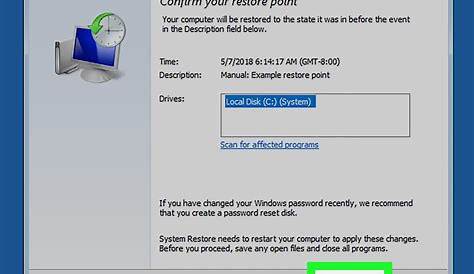
If you've lost files following a recent update, restoring your system to a previous state using System Restore may help you recover them. This feature allows you to revert your computer's settings to a time when everything was functioning properly. Below, you'll find detailed steps on accessing System Restore, selecting the correct restore point, and troubleshooting if you encounter issues.
How do I access system restore?
To access System Restore, follow these steps based on your operating system.
For Windows:
- Click on the Start menu and type
Create a restore pointin the search bar. - Select System Properties from the results.
- In the System Properties window, click on the System Protection tab.
- Click on the System Restore button.
- Follow the prompts to start the restoration process.
For Mac:
- Restart your Mac and hold down the Command and R keys immediately after you hear the startup sound.
- Release the keys when you see the Apple logo.
- When the macOS Utilities window appears, select Restore from Time Machine Backup.
- Follow the instructions to select a backup to restore from.
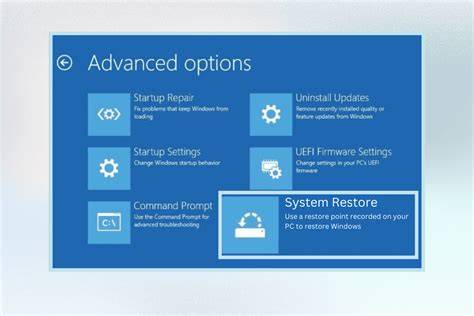
Choosing the right restore point
Selecting the correct restore point is crucial for a successful system restoration. A restore point is a snapshot of your system at a particular time.
- After clicking on the System Restore button in Windows, review the list of available restore points.
- Look for restore points that were created before the update or changes that led to the issue.
- If you're uncertain, check the date and time of each restore point to assist your decision.
- On Mac, you will see a list of backups in Time Machine. Choose the most recent backup made before the problems began.
What if system restore doesn't work?
There may be instances when System Restore does not work as expected. Here are common issues and their solutions:
- Restore point not found: If you see a message indicating no restore points are available, ensure that System Protection is enabled. Go back to the System Properties window and enable it if it is off.
- Error messages during restore: If you receive error messages, take note of the exact wording, as this can assist in troubleshooting. Searching for the error code online often leads to solutions.
- Restore fails: If the restoration fails, consider running System Restore in Safe Mode. To do this, restart your computer and press the F8 key before Windows starts. Then select Safe Mode with Command Prompt and run System Restore from there.
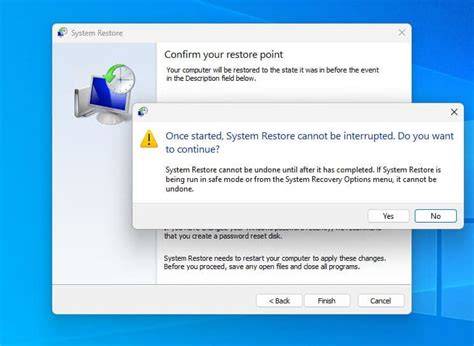
Verifying the restoration success
After completing the system restore, it’s essential to verify that everything has returned to normal. Here’s what to do:
- Check that the files you were missing are now accessible.
- Confirm that your applications are functioning correctly and settings are as you expect.
- If you notice any issues, additional troubleshooting may be necessary, or you might want to consider another restore point if available.
Frequently asked questions about system restore
- Can I restore my system without losing files? Yes, System Restore does not affect your personal files; it only changes system settings and applications.
- How often should I create restore points? It's advisable to create restore points before making significant changes to your system, such as installing new software or updates.
- Is there a limit to how many restore points I can have? Yes, Windows automatically deletes older restore points when space is needed, so you may not have an unlimited number.
Conclusion
If you still can't find your lost files or if problems persist after restoring your system, consider looking into file recovery software or contacting technical support. Regular backups are also a reliable way to prevent future data loss.
Frequently Asked Questions
How do I know if System Restore is enabled?
You can check this in the System Properties under the System Protection tab. If the option is available and turned on for your drive, System Restore is enabled.
Will System Restore remove my installed programs?
System Restore does not delete personal files or documents, but it may remove programs that were installed after the selected restore point.
Can I undo a system restore?
Yes, after a successful restore, you can undo it by going back to System Restore and selecting the option to undo the last restoration.
What should I do if I can't find any restore points?
If no restore points are available, ensure that System Protection is enabled for your drive. If it is enabled and you still see no points, you may need to look for alternative recovery solutions.