If you're new to Windows 11 and want to remove unnecessary apps, you can do so easily through various methods. This guide will provide you with step-by-step instructions for uninstalling apps using the Settings app, the Start menu, and PowerShell. By following these methods, you can simplify your experience and focus on the applications that matter to you.
What methods can I use to uninstall apps? [prerequisites]
Before you begin, make sure you have the following:
- Administrator privileges on your device.
- Windows 11 installed.
You have several methods to uninstall apps in Windows 11:
- Settings app: The most common method to remove apps.
- Start menu: Allows for quick uninstallation of frequently used apps.
- PowerShell: For advanced users, this method can remove apps that standard methods can't.
How do I uninstall an app using Settings? [steps]
To remove an app using the Settings app, follow these steps:
- Click on the Start button (Windows icon) in the taskbar.
- Select Settings (the gear icon) from the menu.
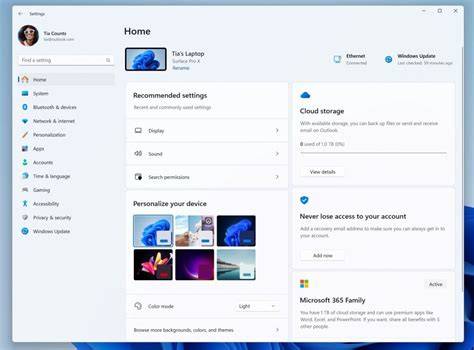
- In the Settings window, click on Apps in the left sidebar.
- Choose Apps & features from the list.
- Scroll through the list or use the search bar to find the app you want to uninstall.
- Click on the app, and a button labeled Uninstall will appear.
- Click Uninstall, and confirm your choice when prompted.
Uninstalling an app may delete any associated data. Make sure to back up any important information beforehand.
What if I can’t uninstall a built-in app? [cautions]
Some built-in apps in Windows 11 cannot be removed using standard methods, as they are considered essential. Common examples include:
- Microsoft Edge
- Cortana
- Xbox Game Bar
If you wish to remove one of these apps, you can use PowerShell. Here’s how:
- Right-click the Start button and select Windows Terminal (Admin).
- In the terminal, type the following command to remove the app (replace
appnamewith the actual app name):
title="PowerShell (run as Administrator)"
Get-AppxPackage *appname* | Remove-AppxPackage- Press Enter to execute the command.
Removing built-in apps can affect system stability. Proceed with caution.
What to do if an app fails to uninstall? [completion]
If an app fails to uninstall properly, try the following troubleshooting steps:
- Restart your computer: A reboot can resolve temporary issues.
- Close the app: Ensure the app isn't running in the background. Use Task Manager to end the task if necessary.
- Press Ctrl + Shift + Esc to open Task Manager.
- Locate the app in the list, click on it, and select End Task.
- Try uninstalling again: Go back to the Settings app or Start menu to attempt the uninstallation again.
- Use PowerShell: If the app still won’t uninstall, open Windows Terminal as an administrator and type:
title="PowerShell (run as Administrator)"
Get-AppxPackage *appname* | Remove-AppxPackage- Check for updates: Make sure your Windows 11 is up to date, as updates can fix bugs that might prevent uninstallation.
Verification: After following these steps, the app should no longer appear in your installed applications list.
Conclusion
Once you've uninstalled unnecessary apps, your Windows 11 experience will be more streamlined. Should you encounter further issues or need to manage built-in apps, remember that PowerShell is an available option. Regularly review your installed apps to keep your system organized and efficient.
Frequently Asked Questions
Can I reinstall an app after uninstalling it?
Yes, most apps can be reinstalled from the Microsoft Store or their official websites after uninstallation.
What happens to my data when I uninstall an app?
Uninstalling an app typically removes its data, so be sure to back up anything important before proceeding.
Are there any apps that cannot be uninstalled?
Yes, built-in apps like Microsoft Edge and Cortana cannot be uninstalled through normal methods.
How can I manage apps that are not responding?
You can end the task in Task Manager or use the troubleshooter in Settings to address non-responsive apps.