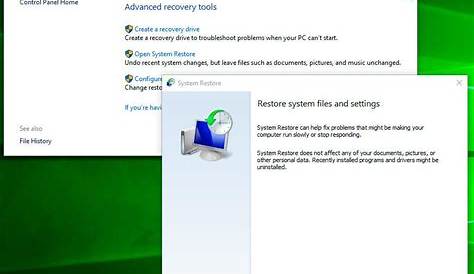
If you've accidentally installed a problematic update on your Windows computer, you can use System Restore to revert your system to a previous state before the update caused issues. This feature allows you to restore system files and settings without affecting your personal files. Here’s a straightforward guide on how to effectively use System Restore to resolve your Windows problems.
How do I access System Restore? [prerequisites]
To use System Restore, ensure your computer is running a version of Windows that supports it, such as Windows 10 or Windows 11. You also need administrative privileges. Here are a few ways to access System Restore:
- Via Control Panel: 1. Open Control Panel from the Start menu. 2. Click on "System and Security." 3. Select "System." 4. On the left side, click on "System Protection." 5. Click on the "System Restore..." button.
- Via Recovery Options: 1. Open Settings from the Start menu. 2. Click on "Update & Security." 3. Select "Recovery" from the left menu. 4. Under "Advanced startup," click on "Restart now." 5. Once your PC restarts, select "Troubleshoot," then "Advanced options," and finally "System Restore."
How to select a restore point [steps]
Choosing the right restore point is essential for restoring your system effectively. Follow these steps:
- When the System Restore window opens, click "Next."
- You'll see a list of available restore points. Check the box for "Show more restore points" if needed to view additional options.
- Select a restore point from the list that predates the problematic update. Dates and descriptions will help you identify the correct one.
- After selecting the restore point, click "Next" to proceed.
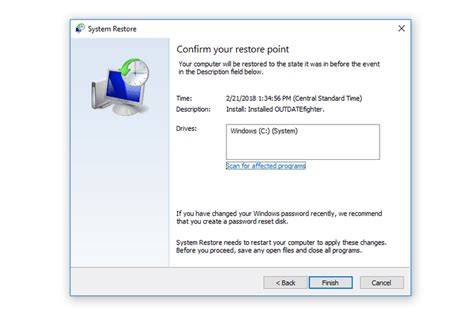
- Review your selection, then click "Finish" to begin the restoration process. A confirmation message will appear, warning you that the process cannot be undone.
- Click "Yes" to confirm and start the restoration. Your computer will then restart and restore to the selected point.
What if System Restore doesn't work? [completion]
If System Restore fails to complete successfully, it can be frustrating. Here are some common issues you might encounter and how to troubleshoot them:
- Error messages: If you see an error message during the restoration process, take note of it, as it can provide clues to the issue.
- Antivirus Software: Sometimes, third-party antivirus programs can interfere with System Restore. Try disabling or uninstalling them temporarily before attempting the restore again.
- Corrupted Restore Points: If your restore point is corrupted, it won’t work. In this case, try selecting a different restore point.
- Running in Safe Mode: If you continue to experience problems, you might want to boot your computer in Safe Mode and try running System Restore again. To enter Safe Mode, restart your computer and repeatedly press the F8 key until the Advanced Boot Options menu appears.
You will know System Restore worked if your computer starts up normally and the issues caused by the update have been resolved.
Understanding the limitations of System Restore [faq]
System Restore is a useful tool, but it has its limitations. It can only revert system files, settings, and installed programs that were added after the restore point was created. Here are some key points to keep in mind:
- Personal Files: System Restore does not affect personal files such as documents, photos, or music.
- Installed Programs: Programs installed after the restore point will be removed.
- System Updates: Some system updates might not be uninstalled, particularly critical updates from Microsoft.
When to use System Restore vs. other recovery options [faq]
Deciding whether to use System Restore or another recovery method depends on your situation:
| Recovery Option | When to Use |
|---|---|
| System Restore | Use when you want to undo recent system changes, like updates or software installations. |
| Resetting the PC | Consider this if your system is severely malfunctioning and you want to restore it to factory settings, erasing personal files in the process. |
| Reinstalling Windows | This option is best if your Windows installation is corrupted and other recovery methods fail. You can choose to keep or remove personal files during this process. |
Conclusion
After using System Restore, check your system to see if the issues have been resolved. If problems persist, you may need to explore other recovery options. Always ensure you have backups of your important data before making significant system changes.
Frequently Asked Questions
Can I use System Restore without an administrator account?
No, you need administrative privileges to access and use System Restore.
Will System Restore delete my personal files?
No, System Restore does not affect personal files like documents or photos.
How far back can I restore my system?
The availability of restore points varies; typically, Windows keeps restore points for a few days to weeks.
Is System Restore safe to use?
Yes, System Restore is generally safe; however, it's advisable to back up your important data before proceeding.