If you're a busy professional working from home and struggling with limited laptop storage, using external storage is an effective way to manage your files. External storage options can help you free up space on your device and enhance your workflow. This guide covers various types of external storage, how to set them up, tips for transferring files, and best practices for keeping everything organized.
What types of external storage can I use?
There are several types of external storage options available to help you free up space on your laptop. Here are the most common ones:
- USB Flash Drives: Small and portable, these devices connect to your laptop via USB and come in sizes ranging from 8GB to 1TB. They're ideal for quick file transfers.
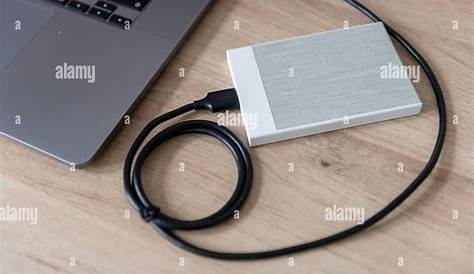
- External Hard Drives: These offer significantly more storage than USB flash drives, typically ranging from 500GB to several terabytes. They connect via USB or Thunderbolt and are perfect for backing up large files or entire systems.
- Solid-State Drives (SSDs): Faster and more reliable than external hard drives, SSDs use flash memory for quicker access times. While they can be pricier, their performance often justifies the cost.
- Cloud Storage Services: Options like Google Drive, Dropbox, and OneDrive allow you to store files online. This is convenient for accessing files from multiple devices, though it requires a stable internet connection and may have storage limits based on your plan.
How do I connect and set up my external storage?
Setting up your external storage is straightforward. Here’s how to do it:
- Connect the Device: Plug your external storage device into your laptop’s USB port. If you're using a cloud service, ensure you have the app installed or access the website.
- Power On (if required): For external hard drives and SSDs that have separate power sources, turn on the device.
- Wait for Detection: Your laptop should automatically recognize the external drive. You may see a notification indicating that the device is connected.
- Format (if needed): If the drive is new, you might need to format it before use. On Windows, go to
This PC, right-click the drive, selectFormat, choose the file system (NTFS is common for large files), and clickStart. ``text Settings > This PC > Right-click on Drive > Format > File System: NTFS`` - Create Folders: It's advisable to create folders on your external storage for better organization.

What files should I transfer to free up space?
To optimize your device’s storage, consider moving the following types of files:
- Large Files: Videos, high-resolution images, and large presentations can quickly consume space. Transferring these to external storage can free up significant amounts of space.
- Old Projects: Store completed projects that you don’t need immediate access to externally. You can easily retrieve them later if necessary.
- Downloads Folder: This folder often accumulates unnecessary files over time. Review it and transfer files you want to keep but don’t need right away.
- Backups: Move backups of files you no longer actively use to external storage.
How can I organize my files on external storage?
Once you’ve transferred your files, keeping them organized is essential. Here are some strategies:
- Use Folders: Create a folder structure that makes sense to you, such as by project, date, or file type. For example, you might have folders for
Work,Personal, andArchives. - Name Files Clearly: Use descriptive names for your files. Instead of
Document1.docx, use2023_Q1_Project_Report.docx. This clarity helps you find what you need quickly. - Regular Maintenance: Periodically review your external storage to remove files you no longer need or to reorganize as necessary. This practice keeps your storage efficient and prevents clutter.
What should I consider when using external storage?
While external storage is useful, keep the following considerations in mind:
- Data Safety: Always safely eject your external drive before physically disconnecting it to avoid file corruption. On Windows, right-click the drive in
This PCand selectEject. - Backup Practices: Regularly back up important files stored externally. Consider using cloud services as a secondary backup option.
- File Access: Ensure you have a reliable system for accessing your files. If using cloud storage, make sure you have a stable internet connection when you need to retrieve your documents.
- Encryption: For sensitive files, consider encrypting your external storage or using services that offer encryption to protect your data.
Conclusion
Using external storage effectively can enhance your productivity by freeing up space on your laptop. By understanding the different storage options available and how to set them up, you can manage your files more efficiently. Start transferring files that you don’t need immediate access to, and maintain good organization for easy retrieval later.
Frequently Asked Questions
How much storage do I need for my external drive?
It depends on the type of files you work with, but a good starting point is at least 1TB for most professionals.
Can I use external storage with multiple devices?
Yes, most external drives can be plugged into any compatible device, but format them according to the operating system for best compatibility.
Is cloud storage secure?
Most cloud storage services use encryption for data security, but it's wise to review their privacy policies and consider additional encryption for sensitive files.
What happens if I lose my external drive?
If you lose your external drive, any files stored on it may be permanently lost unless you have a backup. It's advisable to keep backups of critical files in another location.