Windows 11 provides various accessibility features designed to assist users with visual or mobility impairments in navigating their computers more easily. These built-in tools can enhance your experience and make everyday tasks more manageable.
What accessibility features does Windows 11 offer?
Windows 11 includes several key accessibility features aimed at improving usability for people with disabilities. One standout tool is Narrator, a screen reader that reads aloud text on the screen, enabling users with visual impairments to interact with their devices. The Magnifier allows you to zoom in on specific areas of the screen, making text and images clearer. For those with mobility challenges, Speech Recognition lets you control your computer using voice commands, allowing for hands-free operation. The On-Screen Keyboard serves as an alternative input method for individuals who have difficulty using a physical keyboard. Additionally, Closed Captions enhance understanding of audio and video content, making it easier to follow along with media.
How do accessibility features support different disabilities?
These accessibility features cater to various needs. For users with visual impairments, Narrator provides spoken feedback to help read documents and navigate menus. The Magnifier assists by allowing you to zoom in on text and images, improving clarity. Speech Recognition supports individuals with mobility challenges by enabling hands-free computer operation; for example, you can dictate an email rather than typing it out. The On-Screen Keyboard can be customized, providing an alternative input method for those who struggle with traditional keyboards.
How can I customize my accessibility settings?
Customizing your accessibility settings in Windows 11 is straightforward. To get started, follow these steps:
- Open Settings by clicking the Start menu and selecting the gear icon.
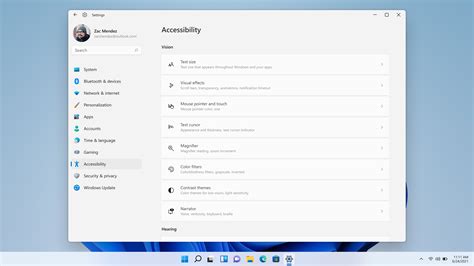
- Click on Accessibility in the left sidebar.
- Explore categories like Vision or Hearing to find options relevant to your needs.
- Select a feature you want to customize, such as Narrator or Magnifier, and adjust the settings according to your preferences.
- For features like Speech Recognition, follow the on-screen instructions to set it up and improve voice recognition.
Common misconceptions about accessibility features
A common misconception is that accessibility features are only for people with severe disabilities. In reality, these tools benefit anyone who may need assistance due to temporary injuries, aging, or specific tasks that require alternative input methods. For instance, someone might use the Magnifier after receiving a new prescription for glasses, or a person recovering from a wrist injury might find the On-Screen Keyboard helpful.
Additional resources for improving accessibility
To explore more about enhancing accessibility in Windows 11, several resources can assist you. The official Microsoft support page offers detailed guides and troubleshooting tips. Community forums can also be an excellent place to ask questions and get advice from other users with similar experiences. Additionally, consider local organizations focused on technology for people with disabilities, as they may provide workshops or one-on-one support.
Conclusion
Exploring the accessibility features in Windows 11 is an excellent step towards a more comfortable computing experience. Take the time to customize your settings to better suit your needs, and don't hesitate to seek support or more information as you navigate these tools.
Frequently Asked Questions
What is Narrator in Windows 11?
Narrator is a screen reader that reads aloud text on the screen, helping users with visual impairments navigate their devices.
Can I use voice commands to control Windows 11?
Yes, Speech Recognition allows you to control your computer using voice commands, making it easier for users with mobility challenges.
How do I access accessibility settings in Windows 11?
You can access accessibility settings by opening Settings, clicking on Accessibility in the left sidebar, and exploring the available options.
Are accessibility features only for people with disabilities?
No, accessibility features can assist people with temporary conditions, age-related challenges, or anyone seeking alternative ways to interact with their device.