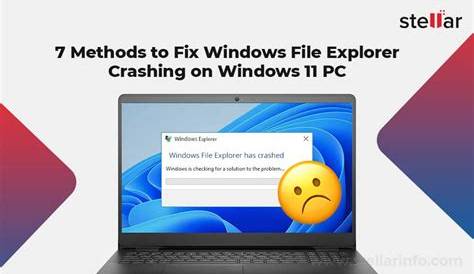
If Windows 11 keeps crashing, it can disrupt your work and gaming experience. Common causes include software conflicts, outdated drivers, hardware issues, and problematic updates. To stabilize your system, it’s essential to identify the root cause and apply the appropriate fixes.
What could be causing my Windows 11 to crash?
Several factors can lead to crashes in Windows 11:
- Software Conflicts: Incompatible programs can interfere with each other, causing the system to crash.
- Driver Issues: Outdated or corrupted drivers, particularly for graphics cards and peripherals, are frequent culprits.
- Hardware Problems: Failing components, such as RAM or hard drives, can create instability.
- System Updates: Sometimes, a Windows update may introduce compatibility issues.
- Malware: Malicious software can disrupt normal operations, leading to crashes.
When you experience a crash, you may notice symptoms such as sudden reboots or the blue screen of death (BSOD), which can occur anytime, especially during resource-intensive tasks.
How can I identify what’s causing the crashes?
To diagnose the cause of your crashes, you can use these tools:
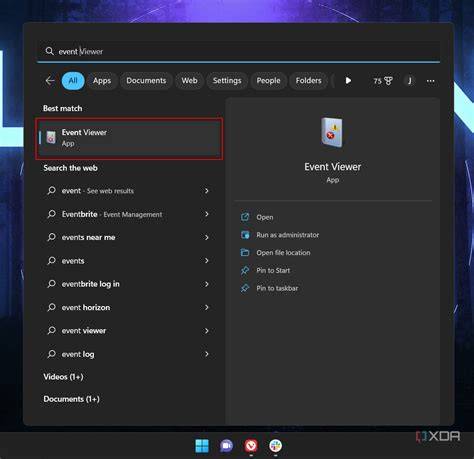
- Event Viewer: This built-in tool logs system events and errors. You can search for critical errors in the logs to find details about crashes.
- Reliability Monitor: Access this tool by typing "Reliability Monitor" in the search bar. It provides a timeline of system events, including crashes, which helps identify patterns or triggers.
Steps to Use Event Viewer:
- Press
Win + Xand select Event Viewer. - Expand Windows Logs and click on System.
- Look for Critical errors that occurred around the time of the crash.
Steps to Use Reliability Monitor:
- Press
Win + R, typeperfmon /rel, and hit Enter. - Review the timeline for any errors or warnings related to system crashes.
What are the most effective fixes for Windows 11 crashes?
Here are actionable steps to troubleshoot and resolve common issues:
Update Drivers:
- Press
Win + Xand select Device Manager. - Expand categories and right-click on devices, especially graphics and network cards, to select Update driver.
Uninstall Problematic Software:
- Go to Settings > Apps > Apps & features.
- Find recently installed applications that might be causing issues and click Uninstall.
Check for Windows Updates:
- Open Settings.
- Go to Windows Update and click Check for updates.
- Install any available updates and restart your PC.
How can I confirm that the crashes are resolved?
To verify if the crashes have stopped:
- Monitor your system for several days after applying fixes.
- Use the Reliability Monitor to check for new reports of crashes or errors.
- If no new critical errors appear over time, it suggests that the issues may be resolved.
What should I do if the crashes continue?
If your Windows 11 system continues to crash despite your efforts:
- Run Hardware Diagnostics: Use tools like Windows Memory Diagnostic to check for RAM issues.
- Perform a Clean Boot: This helps identify if background services are causing conflicts. To do this: 1. Press
Win + R, typemsconfig, and hit Enter. 2. Under the Services tab, check Hide all Microsoft services, then click Disable all. 3. Restart your computer.
If problems persist, consider seeking professional help or contacting Microsoft support.
Conclusion
If your Windows 11 is still crashing, try the advanced troubleshooting steps mentioned or seek professional help. Regular maintenance, such as updating drivers and checking for malware, can also help prevent future issues. Stay proactive to keep your system stable.
Frequently Asked Questions
What should I do if I see a blue screen error?
Take note of the error code displayed on the blue screen. Researching this specific code can provide insights into the cause of the crash.
How often should I update my drivers?
It's good practice to check for driver updates every few months, especially after major Windows updates or if you notice performance issues.
Can malware cause Windows 11 to crash?
Yes, malware can interfere with system processes and lead to instability, including crashes.
Is it safe to uninstall Windows updates?
Uninstalling Windows updates can resolve issues, but ensure you only remove updates known to cause problems.