As a remote worker, choosing the right productivity apps can significantly enhance your daily tasks. Windows 11 provides a variety of software solutions to help you manage tasks, take notes, and track your time effectively. Here’s a curated list of the best productivity apps for Windows 11, categorized to meet different productivity needs.
What are the top categories of productivity apps for Windows 11?
When selecting productivity apps, consider the following categories:
- Task Management: These apps help you organize your to-do lists, set deadlines, and prioritize tasks.
- Note-Taking: Ideal for jotting down ideas, meeting notes, or research, these tools often support multimedia content.
- Time Tracking: Useful for monitoring how you spend your time on various projects, helping you identify areas for improvement.
- Collaboration Tools: Essential for teams, these apps facilitate communication and project management among remote workers.
- Document Editing: Software that allows for efficient creation and editing of documents, often with cloud storage for easy access.
Which productivity apps are highly rated in each category?
Task Management
- Todoist: Offers a clean interface, task prioritization, and project organization. Users appreciate its simplicity and integration with other apps.
- Microsoft To Do: Known for its seamless integration with Microsoft services, it allows users to create tasks easily and share lists with others.
Note-Taking
- Microsoft OneNote: A versatile tool that syncs across devices, supports multimedia notes, and integrates well with other Microsoft products. Users like its flexibility and organizational features.
Time Tracking
- Toggl Track: Known for its user-friendly interface and robust reporting features, Toggl allows you to track your time easily and generate insights. Users find it invaluable for freelance work.
Collaboration Tools
- Microsoft Teams: Provides chat, video meetings, and file sharing, integrating seamlessly with other Microsoft services. Users value its comprehensive communication capabilities.
Document Editing
- Microsoft Word: A classic choice for document creation, it offers a range of features for formatting and collaboration. Users appreciate its familiarity and extensive capabilities.
What unique features should I look for in productivity apps?
When evaluating productivity apps, consider these features:
- Integration Capabilities: Look for apps that can connect with other tools you use, such as calendars, email, or project management software.
- User Interface: A clean, intuitive interface can enhance your experience. Make sure the app is easy to navigate.
- Customization Options: The ability to customize workflows, notifications, and layouts can enhance your productivity by tailoring the app to your specific needs.
- Cross-Device Syncing: Ensure the app syncs data across all your devices, allowing you to access your information wherever you are.
- Collaboration Features: If you work with a team, look for apps that facilitate sharing and real-time collaboration.
How do these apps integrate with Windows 11?
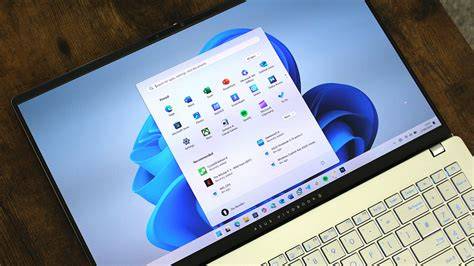
Windows 11 offers several features that enhance the use of productivity apps:
- Snap Layouts: Easily organize multiple app windows on your screen, allowing for better multitasking between your productivity tools.
- Widgets: Some apps offer widgets that can display relevant information directly on your desktop, providing quick access to tasks or notes.
- Virtual Desktops: You can create separate desktops for different projects or tasks, improving focus and organization.
- Touch and Pen Support: If you have a touchscreen device, many apps leverage this for note-taking or document editing, offering a more natural experience.
- Microsoft Store Integration: Most productivity apps are readily available through the Microsoft Store, simplifying the installation and update process.
What do users say about these apps?
User reviews provide valuable insights into the strengths and weaknesses of these productivity apps:
- Todoist: Users appreciate its simplicity but sometimes wish for more advanced features in the free version.
- Microsoft OneNote: Many users love its versatility but find it can be overwhelming due to its many features.
- Toggl Track: Users praise its ease of use, though some note that the mobile app could be improved.
- Microsoft Teams: While users enjoy the comprehensive features, some express that it can be resource-heavy on older devices.
- Microsoft Word: Users value its robust capabilities but occasionally mention issues with collaboration features in real-time editing.
Conclusion
Consider trying a few of these apps based on your specific productivity needs. Each offers unique features that can help streamline your workflow, whether you need task management, note-taking, or time tracking. Finding the right tools can enhance your remote work experience, making it more efficient and enjoyable.
Frequently Asked Questions
What are the best task management apps for Windows 11?
Todoist and Microsoft To Do are highly rated options, praised for their user-friendly interfaces and integration capabilities.
Are there free productivity apps available for Windows 11?
Yes, many productivity apps offer free versions with essential features, such as Todoist and Microsoft OneNote.
How do I choose the right productivity app for my needs?
Consider which features are most important to you, such as task management, note-taking, or collaboration, and look for apps that excel in those areas.
Can I use these apps on other devices?
Most of these apps offer cross-device syncing, allowing you to access them on smartphones, tablets, and other platforms.