If you're ready to install the latest software updates but are unsure about your available disk space, checking this is easy. Knowing the amount of space you have is essential for a smooth update process. Here’s a practical guide to help you find your disk space on both Windows and macOS, along with steps to take if you need more room for those important updates.
How do I check my disk space on Windows?
You can check your disk space on Windows through File Explorer or the Settings app.
- Open File Explorer by clicking its icon on the taskbar or pressing
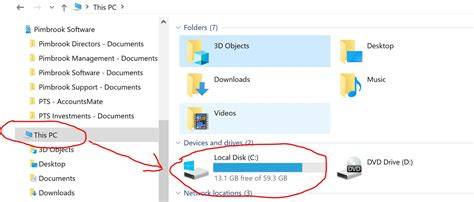
Windows + E. - In the left pane, click on This PC. You'll see your drives listed.
- Look for the drive labeled Windows (C:) or similar. Underneath the drive, you'll see a bar indicating used and free space.
- For more details, right-click the drive and select Properties. A window will pop up showing a pie chart and specific numbers for used and free space.
Alternatively, you can check through Settings:
- Click on the Start Menu and select Settings (the gear icon).
- Go to System and then Storage. Here, you’ll see a breakdown of your disk usage, including how much space is available.
Ensure you have administrative privileges to access certain settings.
How do I check disk space on macOS?
Checking your disk space on macOS is also straightforward, and you can do it in a couple of ways.
- Click on the Apple menu in the top-left corner and select About This Mac.
- In the window that opens, click on the Storage tab. This will give you a visual representation of how much space is used and how much is available.
For a more detailed view:
- Open Finder and select Applications from the sidebar.
- Scroll down to Utilities and open Disk Utility.
- Select your main drive from the list on the left. The bottom of the window will show you the available and used space.
If you need a more detailed breakdown of space usage, Disk Utility provides additional information.
What if I don’t have enough disk space?
If you find that you don’t have enough disk space for updates, there are several options to free up space:
- Delete Unnecessary Files: Remove files you no longer need, such as old documents, downloads, or duplicate photos.
- Empty the Recycle Bin or Trash: Files in the Recycle Bin or Trash still occupy space until you permanently delete them.
- Uninstall Unused Applications: Go through your installed programs and remove any that you rarely use.
- Use External Storage: Consider using an external hard drive or cloud storage to offload large files that you want to keep but don’t need immediate access to.
- Disk Cleanup Tools: On Windows, you can use the built-in Disk Cleanup tool. Just search for it in the Start menu, select the drive, and follow the prompts to clear up space.
Deleting files is irreversible, so ensure you back up important data before proceeding.
Why is disk space important for updates?
Having enough disk space is crucial for installing updates because updates often require additional space to download and install new files. If there isn’t sufficient space, the update process can fail, leading to incomplete installations or system instability. Low disk space can also slow down your computer's performance, as the operating system needs room to manage temporary files and other processes.
FAQs about checking disk space for updates
Here are some common questions related to checking disk space for updates:
- How much disk space do I need for updates? The required space can vary by update, but generally, having at least 10-20% of your total disk space free is a good rule of thumb.
- Can I install updates without enough space? No, insufficient space usually prevents updates from installing correctly.
- What types of files take up the most space? Large files such as videos, software applications, and games tend to occupy the most disk space.
Conclusion
Now that you know how to check your disk space and what to do if it's running low, you can confidently prepare for your software updates. Regularly monitoring your disk space can help you avoid issues in the future.