If you're unsure whether your computer can run Windows 11, it's essential to check its compatibility against the system requirements. Windows 11 has specific hardware and software needs that differ from previous versions. This guide will help you determine if your device is ready for the upgrade.
What are the minimum system requirements for Windows 11?
To run Windows 11, your computer must meet the following minimum system requirements:
- Processor: 1 GHz or faster with at least 2 cores on a compatible 64-bit processor or System on a Chip (SoC).
- RAM: 4 GB or more.
- Storage: 64 GB or larger storage device.
- System firmware: UEFI, Secure Boot capable.
- TPM: Trusted Platform Module (TPM) version 2.0.
- Graphics card: DirectX 12 compatible graphics / WDDM 2.x.
- Display: >9” with HD Resolution (720p).
- Internet connection: Internet connectivity is necessary for updates and to download and take advantage of some features.
These specifications ensure a smooth experience with Windows 11, making it crucial to confirm your device meets them.
How to use the PC Health Check tool
To assess your computer's compatibility with Windows 11, follow these steps:
- Download the PC Health Check tool from the official Microsoft website.
- Install the tool by opening the downloaded file and following the on-screen instructions.
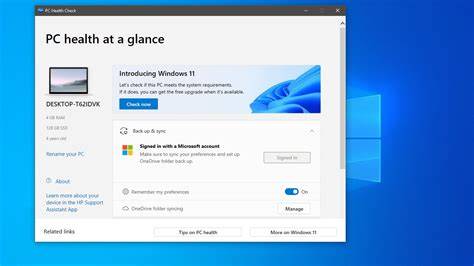
- Once installed, launch the PC Health Check tool.
- Click on the “Check now” button.
- Wait for the tool to analyze your system. It will display a message indicating whether your PC meets the requirements for Windows 11.
If your system is compatible, you’ll see a confirmation message. If it’s not, the tool will provide details on which specific requirements are unmet.
What if my PC is not compatible?
If your device does not meet the minimum requirements for Windows 11, you have a few options:
- Upgrade Hardware: Consider upgrading components such as the CPU, RAM, or adding a TPM 2.0 module if your motherboard supports it.
- Install Windows 10: If upgrading isn’t feasible, you can continue using Windows 10, which will receive support until October 14, 2025.
- Explore Alternatives: If you’re looking for a different operating system, consider lightweight Linux distributions that can run on older hardware.
Common compatibility issues and solutions
Here are some frequent compatibility issues users encounter:
- TPM Not Detected: Ensure TPM is enabled in your BIOS settings. You can usually find this under the Security tab.
- UEFI vs. Legacy BIOS: Windows 11 requires UEFI. If your system is set to Legacy BIOS mode, switch it to UEFI mode in the BIOS settings.
- Insufficient RAM or Storage: If your device lacks the required RAM or storage, consider upgrading these components if possible.
FAQs about Windows 11 compatibility
Here are some common questions regarding Windows 11 compatibility checks:
- Do I need a Microsoft account to install Windows 11? Yes, a Microsoft account is required for certain features and updates.
- Can I run Windows 11 on an unsupported PC? While it's technically possible to install Windows 11 on unsupported hardware, it’s not recommended as you may miss out on essential updates and security features.
- How can I check for TPM version? Press
Windows + R, typetpm.msc, and hit Enter. This will open the TPM Management tool where you can verify the version.
Conclusion
After checking your compatibility with the PC Health Check tool, you should have a clear understanding of whether your device can support Windows 11. If it doesn’t meet the requirements, consider your upgrade options or continue using Windows 10 for now. Regularly updating your system will help ensure the best performance and security.
Frequently Asked Questions
Do I need a Microsoft account to install Windows 11?
Yes, a Microsoft account is required for certain features and updates.
Can I run Windows 11 on an unsupported PC?
While it's technically possible to install Windows 11 on unsupported hardware, it’s not recommended as you may miss out on essential updates and security features.
How can I check for TPM version?
Press `Windows + R`, type `tpm.msc`, and hit Enter. This will open the TPM Management tool where you can verify the version.