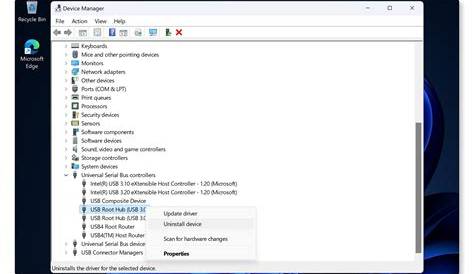
If you're encountering issues with your computer's hardware, faulty device drivers are often the culprit. These software components enable your operating system to communicate with hardware devices. Fortunately, you can quickly identify and resolve driver-related problems using a few straightforward steps.
What are the signs of device driver problems?
Common symptoms of device driver issues include:
- Error messages when using a device.
- The device not functioning at all, such as a printer that won't print.
- System crashes or blue screens when using certain hardware.
- Devices showing a yellow exclamation mark in Device Manager.
For example, you might see an error like this:
Error: Device not recognizedHow can I identify which driver is causing the issue?
To identify the problematic driver, start by checking the Device Manager:
- Right-click on the Start menu and select
Device Manager. - Look for devices with a yellow exclamation mark or red cross.
- Expand categories to find any devices that might have issues.
You may need Administrator privileges to access Device Manager.
This process will help you pinpoint which driver needs attention.
What steps should I take to fix a faulty driver?
You can attempt to fix a faulty driver through several methods:
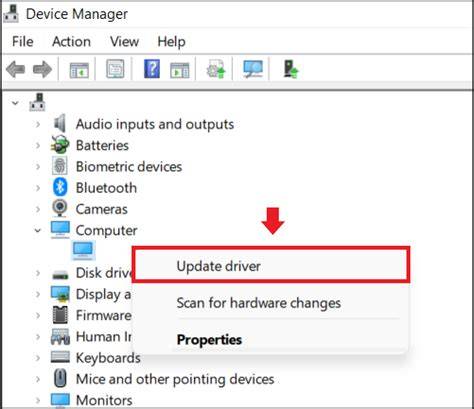
Update the Driver
- In Device Manager, right-click on the problematic device.
- Select
Update driver. - Choose
Search automatically for updated driver software.
search automatically for updated driver softwareIf a new driver is found, follow the prompts to install it.
Roll Back the Driver
- If the problem started after an update, right-click the device in Device Manager.
- Select
Properties. - Go to the
Drivertab and clickRoll Back Driverif available.
Reinstall the Driver
- Right-click the device in Device Manager.
- Select
Uninstall deviceand confirm. - Restart your computer; Windows will attempt to reinstall the driver automatically.
Uninstalling a driver may cause the device to stop functioning until reinstalled.
How can I verify if the problem is resolved?
To confirm that the driver issue is fixed:
- After performing your chosen fix, try using the device again.
- Check Device Manager for any warning symbols next to the device.
- If the device works without issues and no warnings are present, the problem is likely resolved.
For example, if you fixed a printer driver, try printing a test page to ensure it operates correctly.
What if the problem persists?
If the problem continues, consider these options:
- Check for Windows updates: Sometimes, system updates include fixes for driver issues.
- Visit the manufacturer's website: You can often find the latest drivers directly from the hardware manufacturer.
- Run hardware diagnostics: Many computers have built-in diagnostics that can help identify hardware problems.
- Seek professional help: If all else fails, it may be time to consult a technician to check for hardware issues.
Conclusion
After following these steps, you should be able to resolve most driver-related issues. If problems persist, further investigation into hardware or reaching out to manufacturer support might be necessary. Regularly updating your drivers and operating system can help prevent future issues.