If you're a new Windows 11 user unsure about how to install applications, this guide is for you. You'll learn the different methods for safely and efficiently adding software to your system. With clear instructions, you'll be able to install applications with confidence, whether from the Microsoft Store or third-party sources.
What are the options for installing applications on Windows 11? [prerequisites]
You have several ways to install applications on Windows 11, each suited for different needs:
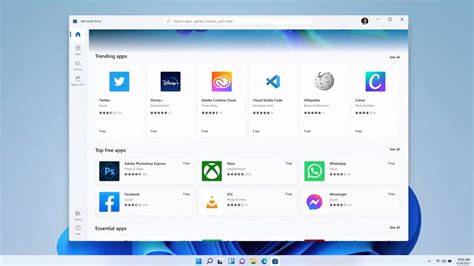
- Microsoft Store: This is the safest option for installing apps, providing a curated selection of software.
- Executable Files: These files are downloaded from the internet, typically ending in .exe, allowing for direct installation.
- Package Managers: Tools like Windows Package Manager (winget) can facilitate batch installations from the command line.
Before you start, ensure you have an active internet connection and a Microsoft account if you plan to use the Microsoft Store.
How do I install apps from the Microsoft Store? [steps]
Installing apps from the Microsoft Store is straightforward. Follow these steps:
- Open the Start menu by clicking the Windows icon on the taskbar.
- Type
Microsoft Storeand press Enter to launch it. - Browse or search for the app you want using the search bar at the top.
- Click on the app from the search results to open its page.
- Click the Get or Install button to download and install the app.
- After installation, you can find the app in your Start menu or search for it.
What if I want to install applications from outside the Microsoft Store? [steps]
Installing applications from third-party sources requires extra caution. Here's how to do it safely:
- Visit a trusted website to download the application you need.
- Locate the download link and click on it. Ensure the site is reputable to avoid malware.
- Once the file is downloaded, navigate to your Downloads folder.
- Double-click on the downloaded
.exefile to start the installation process. - Follow the on-screen prompts to complete the installation. Read each step carefully.
Ensure you have antivirus software running and scan the downloaded file before executing it to prevent malware infections.
- After installation, check for any updates or additional settings the application may require.
How do I verify that an application has been installed correctly? [completion]
After installing an application, it's important to confirm that it works properly. Here’s how:
- Open the Start menu and search for the application you just installed.
- Click on the application to launch it. If it opens without errors, it’s likely installed correctly.
- Look for any setup or configuration steps that may be required after installation.
- If the application doesn’t open or shows errors, try reinstalling it or checking for updates.
What security precautions should I take when installing applications? [faq]
To keep your Windows 11 system safe during application installations, follow these best practices:
- Always download applications from reputable sources.
- Keep your antivirus software updated and running.
- Read user reviews and check ratings for applications before downloading.
- Be cautious of permissions requested during installation; only grant what’s necessary.
Conclusion
Now that you know how to install applications on Windows 11, you can add the software you need with confidence. Stick to the Microsoft Store for the safest options, and if you use third-party sites, prioritize security. Enjoy customizing your Windows experience!
Frequently Asked Questions
How do I uninstall an application in Windows 11?
To uninstall an application, go to **Settings > Apps > Apps & features**, find the application, click on it, and select **Uninstall**.
Can I revert changes if something goes wrong during installation?
If you encounter issues, you can usually uninstall the application as mentioned or use system restore points if they are set up beforehand.
Is it safe to install applications from unknown sources?
It's generally not safe. Always verify the source and scan files for malware before installation.
How can I find out if an application is compatible with Windows 11?
Check the application's official website or the Microsoft Store for compatibility information.