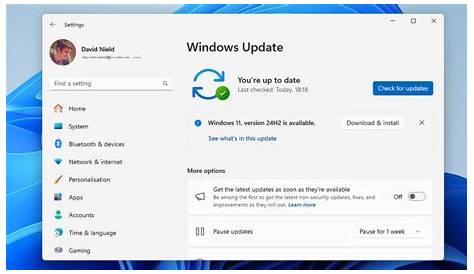
If you're having trouble with Windows Update, resetting the Windows Update services can often resolve the issue. This guide provides clear steps to help you reset these services and get your updates back on track.
What are Windows Update Services and Why Reset Them?
Windows Update services are crucial components of the Windows operating system that manage the downloading and installation of updates, drivers, and security patches to keep your system secure and up-to-date. Occasionally, these services may become corrupted or encounter errors, which can lead to failed updates or error messages. You might need to reset the Windows Update services if you experience incomplete updates, error codes like 0x80070057 or 0x800F081F, or if the Windows Update service fails to start.
Prerequisites
Before you begin resetting Windows Update services, ensure you have the following:
- Administrator access to your Windows account.
- Ensure your system is running a supported version of Windows (Windows 10 or later).
- A stable internet connection to download updates after the reset.
How to Reset Windows Update Services Step by Step
To reset the Windows Update services, you can follow these steps using both the Command Prompt and the Services application.
Using Command Prompt
- Open Command Prompt as Administrator. Right-click the Start button, and select "Windows Terminal (Admin)" or "Command Prompt (Admin)".
- Stop the Windows Update services by entering the following commands one at a time: ``
cmd net stop wuauserv net stop cryptSvc net stop bits net stop msiserver`` - Delete the SoftwareDistribution and Catroot2 folders by typing: ``
cmd rd /s /q C:\Windows\SoftwareDistribution rd /s /q C:\Windows\System32\catroot2`` - Restart the services you stopped earlier: ``
cmd net start wuauserv net start cryptSvc net start bits net start msiserver``
Using Services.msc
- Press
Windows + Rto open the Run dialog. Typeservices.mscand hit Enter. - In the Services window, locate and right-click on the following services one at a time, selecting "Restart": - Windows Update - Background Intelligent Transfer Service - Cryptographic Services.
What Problems Can Arise from Windows Update Issues?
When Windows Update services are not functioning properly, you might encounter several issues:
- Error Messages: You may see error codes like 0x80070057 or 0x800F081F when trying to check for updates.
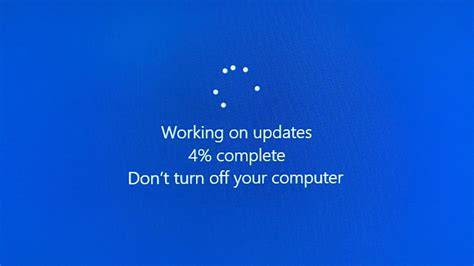
- Stuck Updates: Updates may get stuck at a certain percentage, often at 0% or 99%.
- Failure to Install Updates: You might receive notifications that updates failed to install.
- System Instability: Your system could become unstable, leading to crashes or performance problems.
How to Confirm Your Reset Worked
After resetting the Windows Update services, you should verify that they are functioning properly. Here’s how to confirm:
- Open Settings by pressing
Windows + I. - Navigate to "Update & Security" and click on "Windows Update".
- Click on the "Check for updates" button. If the system searches for updates without errors, the reset was successful. You should see available updates listed if there are any.
What to Do If Problems Persist After Resetting?
If issues continue after resetting the Windows Update services, consider these additional troubleshooting steps:
- Run the Windows Update Troubleshooter: Go to Settings > Update & Security > Troubleshoot > Additional troubleshooters > Windows Update.
- Check for Corrupt System Files: Open Command Prompt as Administrator and run: ``
cmd sfc /scannow`` - Reset Windows Update Components: You may need to manually reset components if problems persist.
Conclusion
After resetting the Windows Update services and confirming they are operational, your system should be able to install updates smoothly again. If problems continue, further troubleshooting or professional support may be necessary.
Frequently Asked Questions
How often should I reset Windows Update services?
You should reset Windows Update services only when you encounter specific issues with updates, such as error messages or failed installations.
Will resetting Windows Update services delete my files?
No, resetting the Windows Update services does not delete your personal files or data.
Can I automate the reset process?
Yes, you can create a batch file with the commands provided to automate the reset process for future use.
What should I do if I can't open Command Prompt as an administrator?
If you can't open Command Prompt as an administrator, try accessing it through the Windows Recovery Environment or ensure your user account has administrative privileges.