
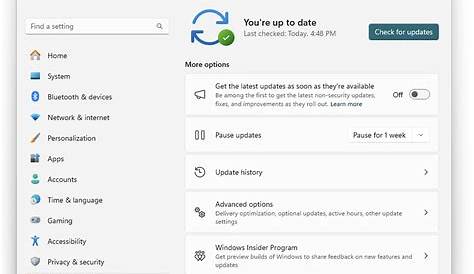
If you're facing issues with Windows updates failing to install properly, resetting your Windows Update settings can help restore functionality. This straightforward process can resolve many common problems, allowing your system to download and install updates smoothly. Below is a step-by-step guide to effectively reset your Windows Update settings.
Why might I need to reset Windows Update settings?
Resetting Windows Update settings can be beneficial in various scenarios. You may experience persistent update failures, where updates repeatedly fail to install, or encounter error messages that block the process. Other common issues include the update process getting stuck or running indefinitely. In such cases, resetting the update settings can eliminate corrupted files or misconfigurations that hinder successful updates.
What do I need before starting the reset?
Before starting the reset process, ensure you have the following:
- Administrator access to your Windows account.
- A backup of your important files, just in case something goes wrong.
- A system restore point created to allow for recovery if necessary.
How do I reset Windows Update settings step by step?
Follow these steps to reset Windows Update settings:
- Press
Windows + Rto open the Run dialog. You should see a small window pop up. - Type
services.mscand pressEnter. This opens the Services window. - Locate and right-click on Windows Update from the list, then select Stop. This halts the update service, allowing you to make changes.
- Open File Explorer and navigate to
C:\Windows\SoftwareDistribution. This folder contains files related to updates. - Delete all files in the SoftwareDistribution folder. This clears any potentially corrupted files.
- Go back to the Services window, right-click on Windows Update, and select Start. This restarts the update service.
- To ensure everything is reset, open Command Prompt as an administrator. You can do this by searching for Command Prompt, right-clicking it, and selecting Run as administrator.
- Type the following commands, pressing
Enterafter each one:
net stop wuauserv
net stop cryptSvc
net stop bits
net stop msiserver
net start wuauserv
net start cryptSvc
net start bits
net start msiserver
Command Prompt
This resets and restarts multiple services related to Windows Update.
What should I do if the reset doesn’t work?
If you've followed the reset process and updates are still failing, consider these troubleshooting tips:
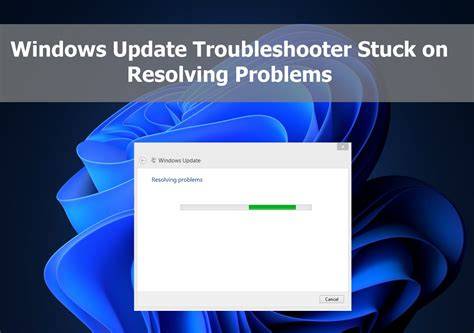
- Run the Windows Update Troubleshooter: Go to Settings > Update & Security > Troubleshoot > Additional troubleshooters > Windows Update.
- Check for malware: Sometimes, malicious software can interfere with updates. Use Windows Defender or another trusted antivirus program to scan your system.
- Ensure your system is up to date: Occasionally, updates are blocked if your current version of Windows is outdated.
How can I prevent future Windows Update issues?
To maintain update stability and avoid common pitfalls, follow these best practices:
- Regularly check for updates manually if automatic updates are failing.
- Keep your system clean from junk files that may interfere with the update process.
- Avoid using third-party tools that claim to enhance the update process, as they can sometimes create more issues.
Conclusion
After resetting your Windows Update settings, try running updates again to see if the issues have been resolved. If problems persist, consider seeking further support or checking online forums for solutions tailored to your specific error messages. Regular maintenance can help keep your system running smoothly.
Frequently Asked Questions
What happens if I delete the SoftwareDistribution folder?
Deleting the SoftwareDistribution folder removes temporary update files, which can resolve issues with corrupted updates. Windows will recreate this folder when updates are next downloaded.
How do I create a system restore point?
To create a system restore point, search for 'Create a restore point' in the Start menu, select your system drive, click 'Create', and follow the prompts.
Will I lose my files after resetting Windows Update settings?
No, resetting Windows Update settings does not affect your personal files or applications. However, it's always a good idea to back up important files before making system changes.
Can I reset Windows Update settings using PowerShell?
Yes, you can reset Windows Update settings using PowerShell commands, but the steps provided here are more straightforward for most users.