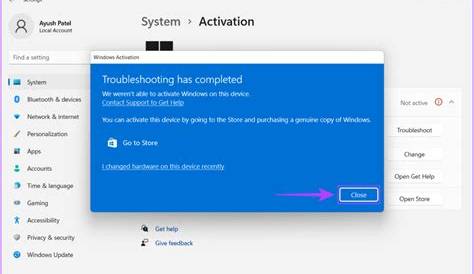
If you're having trouble activating your software and receiving error messages, don't worry—this is a common problem with clear solutions. The activation issues typically stem from incorrect license keys or connectivity problems, but there are straightforward steps you can take to resolve them. This guide will help you identify the issue and get your software running smoothly again.
What error messages am I seeing?
Common activation error messages often provide insight into the issue at hand. Here are some frequent messages you may encounter:
Error: "Activation failed. Please try again later."Error
This message may indicate a temporary server issue or a connectivity problem.
Error: "Invalid license key."Error
This suggests that the key entered doesn’t match the one on record, possibly due to a typo or using an expired key.
Error: "Software not activated."Error
This usually means that the activation process did not complete successfully, potentially due to a lack of internet access or unmet prerequisites.
Have I met all the requirements?
Before troubleshooting, ensure that your system meets the activation requirements. Here’s what to check:
- Confirm that your software version is current and compatible with your operating system.
- Ensure you have a stable internet connection, as activation typically requires online verification.
- Run the software with Administrator privileges if you’re on Windows, or use
sudoon Linux systems.
A system restart can also help resolve temporary issues.
How do I fix activation errors?
To address activation issues, follow these steps:
- Verify your license key for accuracy, checking for typos or extra spaces.
- Try re-entering the license key to resolve minor input errors. ``
text Enter your license key: [Your License Key]`` - Check your internet connection. If you're using Wi-Fi, consider switching to a wired connection if possible.
- Restart the software and attempt to activate again.
- If the previous steps fail, consider reinstalling the software as a last resort. Before doing this, back up any important data associated with the software. > Warning: Reinstalling may require you to re-enter your license key.
How can I verify if the problem is resolved?
After attempting the fixes, confirm whether the activation was successful:
- Launch the software and check for any error messages during startup.
- Look for a confirmation message stating that the software is activated.
- If available, access the settings or account section of the software to see if it indicates active status.
Expected output:
Status: ActivatedExpected output
If you still see error messages, further troubleshooting may be necessary.
What if the problem persists?
If you've gone through the steps above and the activation issue remains unresolved, consider these additional actions:
- Check the software’s official support page for known issues or updates related to activation problems.
- Reach out to customer support for assistance, having your purchase details and error messages ready to expedite the process.
- Consult online forums or communities related to the software for similar issues and potential solutions.
Conclusion
After following these steps, you should be able to resolve most activation issues. If your software still isn't activating, contacting customer support is the next best step, as they can provide tailored guidance for your situation.