If you are experiencing frequent crashes, slow performance, or error messages on Windows 11, there are several troubleshooting steps you can take to restore functionality. This guide outlines common symptoms and provides immediate solutions, enabling you to address issues effectively. Understanding when to seek professional help versus troubleshooting on your own is essential for resolving your problems quickly.
What are the common symptoms of Windows 11 issues?
Common symptoms of Windows 11 problems include:
- Frequent crashes or blue screen errors that interrupt your work.
- Slow performance where programs take longer to respond or load.
- Error messages that pop up unexpectedly, hindering your tasks.
- Applications freezing or not responding altogether.
For instance, if you see a blue screen error, you might encounter text like this:
Error: Your PC ran into a problem and needs to restart. We're just collecting some error info, and then we'll restart for you.This message usually appears when there's a critical issue affecting your system stability.
When should I troubleshoot vs. seek professional help?
Before you start troubleshooting, consider the following:
- Ensure you have Administrator privileges on your computer.
- Make a backup of important files, just in case.
- Check for any obvious hardware issues, like loose cables or peripherals.
Attempt DIY troubleshooting if the issues seem minor, such as slow performance or a specific application crashing. However, if the problem persists after common fixes or you encounter hardware malfunctions, it may be time to consult a professional. Stubborn blue screen errors or persistent crashes typically warrant expert assistance.
How can I fix crashes and performance issues?
To address crashes and performance problems, follow these steps:
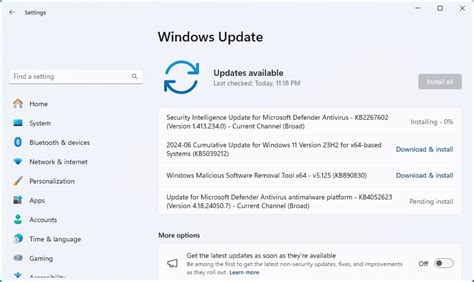
- Run Windows Update to ensure your system is up to date. ``
powershell title="PowerShell (run as Administrator)" Get-WindowsUpdate`` This command checks for updates. If updates are available, install them. - Check for corrupted system files using the System File Checker tool. ``
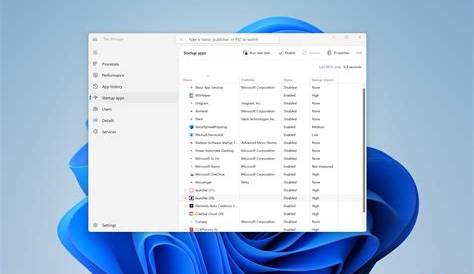
cmd title="Command Prompt (run as Administrator)" sfc /scannow`` This command scans for and repairs corrupted files. - Optimize startup programs to reduce load times. - Open Task Manager by right-clicking on the taskbar and selecting "Task Manager." - Go to the "Startup" tab and disable unnecessary programs.
- Adjust system performance settings for better speed: - Right-click on "This PC" and select "Properties." - Click on "Advanced system settings" and then "Settings" under the Performance section. Choose "Adjust for best performance."
These steps should improve your system's responsiveness and stability. If problems continue, consider more advanced troubleshooting.
How do I verify if my fix worked?
To check if your fix was successful, monitor your system's performance for any recurring issues. You can:
- Run applications that previously caused crashes to see if they now function without errors.
- Check the reliability monitor by typing "Reliability Monitor" in the search bar. This tool shows a timeline of system events and errors, allowing you to confirm if issues have been resolved.
If the reliability report shows no recent critical events, your fixes likely worked.
What preventive measures can I take to avoid future problems?
To keep Windows 11 running smoothly, consider the following preventive measures:
- Regularly update your system and installed applications to patch vulnerabilities.
- Perform routine maintenance, such as disk cleanup and defragmentation (for HDDs).
- Use built-in tools like Disk Cleanup and Optimize Drives to free up space and optimize performance.
- Backup your files frequently to avoid data loss in case of future issues.
These steps can help you maintain system health and reduce the likelihood of encountering problems.
Conclusion
If you've followed the steps outlined here, your Windows 11 should be more stable and responsive. Keep an eye on your system's performance, and don't hesitate to revisit these troubleshooting steps if issues arise again. Regular maintenance will help you avoid many common problems in the future.