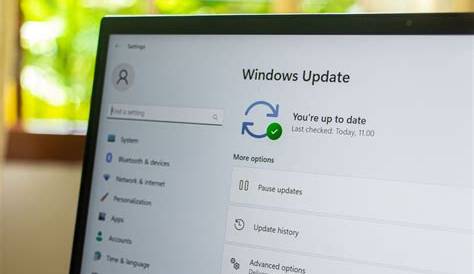
Cumulative updates in Windows 11 are essential packages that include all recent fixes and improvements, making it simpler for users to keep their systems up to date. When you install a cumulative update, you're applying all previous updates along with the latest enhancements, which helps streamline the update process.
What are cumulative updates?
Cumulative updates are a type of update in Windows 11 that include all previously released fixes and improvements. Unlike regular updates, which may only address specific issues or introduce new features, cumulative updates bundle multiple updates into one package. For example, if you missed several updates, installing the latest cumulative update will ensure your system is fully up-to-date with all security patches and enhancements.
How do cumulative updates improve my system?
Cumulative updates enhance your system's stability, security, and overall performance. They include critical security patches that protect your device from vulnerabilities, ensuring your data remains safe. Additionally, they address bugs that may have impacted system performance, leading to a smoother user experience. Cumulative updates can also introduce new features or improve existing ones, helping you maximize your operating system's potential.
What if a cumulative update fails to install?
If a cumulative update fails to install, follow these troubleshooting steps:
- Restart your computer and try to install the update again.
- Run the Windows Update Troubleshooter: - Open Settings. - Go to Update & Security. - Click on Troubleshoot, then Additional troubleshooters, and select Windows Update.
- Check for enough disk space; insufficient space can cause installation failures.
- If the update continues to fail, you can manually download and install it from the Microsoft Update Catalog.
How often can I expect cumulative updates?
Cumulative updates are typically released on a predictable schedule. Microsoft usually issues them on the second Tuesday of each month, referred to as "Patch Tuesday." However, additional updates may be released as needed, especially to address critical security vulnerabilities.
Common misconceptions about cumulative updates
There are several misconceptions about cumulative updates. One common myth is that they are optional; in reality, they are crucial for maintaining system security and stability, and users should install them promptly. Another misunderstanding is that cumulative updates only fix bugs; while they do address issues, they also enhance features and improve overall performance.
Conclusion
To keep your Windows 11 device secure and running smoothly, regularly check for cumulative updates and install them as soon as they become available. If you encounter issues during installation, follow the troubleshooting steps outlined above to resolve them swiftly.
Frequently Asked Questions
What is the difference between a cumulative update and a regular update?
Cumulative updates package all previous updates into one, ensuring your system is fully updated, while regular updates may only address specific issues or features.
Can I choose not to install cumulative updates?
While you can defer updates, it's not recommended as cumulative updates often contain crucial security patches and system improvements.
How long does it take to install a cumulative update?
Installation time can vary based on the size of the update and your system's performance, but it typically takes anywhere from a few minutes to an hour.
What should I do if I keep getting errors when installing updates?
If you encounter repeated errors, try running the Windows Update Troubleshooter, checking your internet connection, or ensuring there is sufficient disk space.