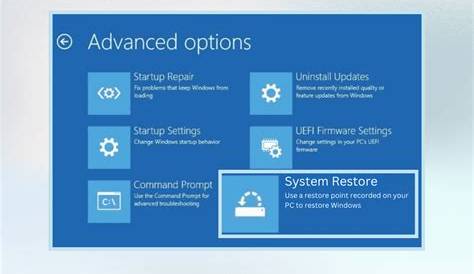
If you've encountered issues after a recent update, using System Restore is a straightforward way to revert your computer to a previous, stable state without losing your data. System Restore lets you undo system changes by restoring system files and settings to a previous point in time. This guide will help you effectively use System Restore to resolve your problems.
What is System Restore and how does it work?
System Restore is a built-in feature in Windows designed to help recover your system from various issues, such as software malfunctions, driver conflicts, or problematic updates. It creates snapshots of your system settings and files at specific intervals, referred to as restore points. If you encounter problems, you can revert your system to one of these points, effectively undoing any changes made after that snapshot was taken. This process does not affect your personal files, like documents or images, making it a safe option for troubleshooting.
Prerequisites for using System Restore
Before initiating a System Restore, ensure you have the following:
- A Windows computer with System Restore enabled.
- Administrative privileges on the computer.
- An existing restore point created before the issues began.
Step-by-step instructions for initiating a system restore
To initiate a System Restore, follow these steps:
- Click on the Start button and type
System Restorein the search box. - Select Create a restore point from the results.
- In the System Properties window, click on the System Restore button.
- Click Next on the System Restore wizard.
- You will see a list of available restore points. Select a restore point that predates your issue.
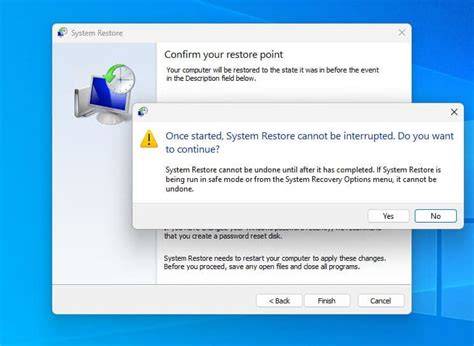
- Click Next and then Finish to confirm your restore point.
- A warning may appear, indicating that the process cannot be undone. Click Yes to proceed.
Your computer will restart, and the restoration will begin. Depending on the amount of data, this process may take some time.
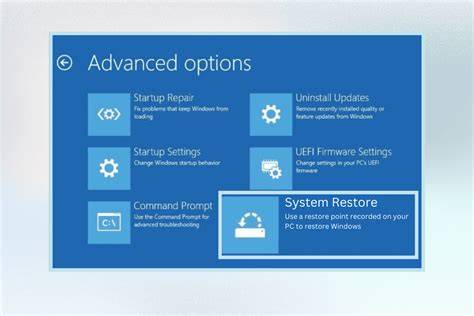
Common issues that can be resolved with system restore
System Restore can help resolve several common issues, including:
- System crashes or freezes following a software update.
- Windows failing to boot properly due to recent changes.
- Driver installation errors leading to hardware malfunctions.
- Performance issues caused by recently installed applications.
- Malware infections that disrupt system settings.
By reverting to a previous restore point, you can often fix these problems without resorting to more drastic measures like a complete system reset.
What to do if System Restore fails
If your attempt to use System Restore fails, consider these troubleshooting steps:
- Ensure you have selected a valid restore point that is not damaged.
- Temporarily disable any antivirus software, as it may interfere with the process.
- Try running System Restore in Safe Mode: - Restart your computer and press
F8before Windows starts. - Select Safe Mode from the menu and attempt the System Restore process again. - If all else fails, consider performing a System Reset or using recovery media to restore your system.
When to consider alternatives to System Restore
While System Restore is a valuable tool, there are situations where it may not be the best option:
- When you need to recover files that were deleted after the last restore point.
- If your system is heavily infected with malware affecting critical system files.
- When performance issues stem from hardware failure rather than software.
In these cases, consider using file recovery software, resetting your PC, or seeking professional help.
Conclusion
After following these steps, your system should revert to a previous state, ideally resolving the issues you were experiencing. If problems persist, explore the alternative methods discussed and take the necessary actions to ensure your system operates smoothly.
Frequently Asked Questions
What if I can't find a suitable restore point?
If no restore points are available, System Restore may not be effective. You can create a new restore point before making changes in the future. For immediate issues, consider alternative recovery methods.
Will System Restore remove my personal files?
No, System Restore only affects system files, settings, and installed applications. Your personal files remain intact.
Can I undo a System Restore after it's completed?
Generally, you cannot undo a System Restore. However, you can perform another restore to a different restore point if needed.
Is System Restore available on all Windows versions?
System Restore is available on most Windows versions, including Windows 7, 8, and 10, but may not be enabled by default on all systems.