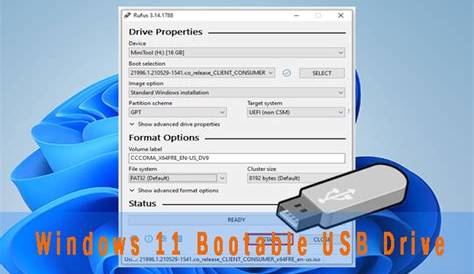
Installing Windows 11 on a device without an internet connection is straightforward when using an offline installer. This guide provides detailed steps to download the official offline installer, create a bootable USB drive, and perform the installation process. You'll have your device set up efficiently, even without internet access.
Where to find the Windows 11 offline installer [prerequisites]
To start, you need to locate the official Windows 11 offline installer on the Microsoft website. Ensure you have the following:
- A valid Windows 11 license or product key.
- A compatible USB drive with at least 8 GB of space.
- Access to a computer with an internet connection to download the installer.
- A tool like the Media Creation Tool, which can help download the ISO file.
How to create a bootable USB drive [steps]
Creating a bootable USB drive from the Windows 11 offline installer involves these steps:
- Download the Media Creation Tool from the Microsoft website. ``
cmd title="Download Media Creation Tool" https://www.microsoft.com/software-download/windows11`` - Run the Media Creation Tool and accept the license terms.
- Select 'Create installation media (USB flash drive, DVD, or ISO file) for another PC' and click 'Next.'
- Choose the appropriate language, edition, and architecture (64-bit is standard for Windows 11) and click 'Next.'
- Select 'USB flash drive' and click 'Next.'
- Choose your USB drive from the list and click 'Next.' The tool will download Windows 11 and create a bootable USB drive.
Installation steps without internet [steps]
Once your bootable USB drive is ready, follow these steps to install Windows 11 offline:
- Insert the bootable USB drive into the device where you want to install Windows 11.
- Restart the device and enter the BIOS/UEFI settings (usually by pressing F2, F12, Delete, or Esc during startup).
- Change the boot order to prioritize the USB drive and save the changes.
- The device should boot from the USB drive. Follow the on-screen prompts until you reach the 'Install now' screen.
- Enter your Windows 11 product key when prompted, or select 'I don’t have a product key' to continue with limited functionality.
- Choose the type of installation: 'Upgrade' or 'Custom.' For a fresh installation, select 'Custom' and choose the drive where you want to install Windows 11.
- Click 'Next' and wait for the installation to complete. The device will restart multiple times.
Common issues during installation [completion]
You may encounter a few common issues during the installation process. Here's how to troubleshoot them:
- Installation fails: Ensure your USB drive is properly created and is not corrupted. Redownload the ISO and recreate the bootable USB if needed.
- Missing drivers error: Windows 11 might not have all the necessary drivers available offline. Consider downloading drivers on another computer and transferring them via USB.
- Device not detected: Check connections and ensure the USB drive is functioning correctly. You may need to use a different USB port.
Additional tips for a smooth installation [faq]
To enhance your installation experience, keep these tips in mind:
- Ensure your device meets the minimum system requirements for Windows 11 before starting the installation.
- Back up any important data on the drive where Windows will be installed to prevent data loss.
- Have a recovery option available in case the installation doesn't go as planned.
Conclusion
After completing the installation, check for updates once you have internet access to ensure your system is secure and up to date. Enjoy your new Windows 11 experience on your offline-installed device!
Frequently Asked Questions
Can I use a DVD instead of a USB drive for the installation?
Yes, you can use a DVD if your device has an optical drive. Just select 'DVD' instead of 'USB flash drive' when creating the bootable media.
What should I do if my USB drive is not recognized during installation?
Try using a different USB port, preferably a USB 2.0 port, as some devices have issues with USB 3.0 ports during installation.
Is it possible to install Windows 11 without a product key?
Yes, you can install Windows 11 without a product key, but some features will be limited until you activate it with a valid key.