
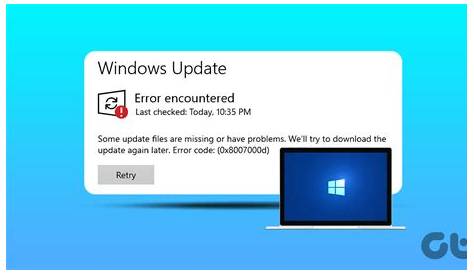
If you're encountering Windows 11 update error 0x800f0988, it indicates that something is preventing the update from completing successfully. This error can arise due to corrupted system files or misconfigured settings. Fortunately, there are effective steps you can take to resolve this issue quickly.
What does error 0x800f0988 mean?
The error code 0x800f0988 signifies a failure during the Windows update process. You may see this error when the update system cannot download or install the necessary files. It typically suggests issues with system files, missing components, or problems with update services.
What causes this update error?
Common causes of the 0x800f0988 error include:
- Corrupted system files: Essential files needed for the update may be damaged.
- Misconfigured system settings: Certain settings in Windows may interfere with the update process.
- Network issues: An unstable internet connection can prevent updates from downloading correctly.
- Update service problems: The Windows Update service might not be functioning properly, halting the update.
How to fix error 0x800f0988?
To resolve this error, follow these steps:
- Run the Windows Update Troubleshooter: Go to Settings > Update & Security > Troubleshoot > Additional troubleshooters > Windows Update. Run the troubleshooter and follow the prompts.
- Reset Windows Update components: Open Command Prompt as Administrator and enter the following commands: ``
cmd title="Command Prompt" net stop wuauserv net stop cryptSvc net stop bits net stop msiserver net start wuauserv net start cryptSvc net start bits net start msiserver`` This stops and restarts the services related to Windows Update. - Check for corrupted files using System File Checker: In Command Prompt (Administrator), run: ``
cmd title="Command Prompt" sfc /scannow`` This scans for and repairs corrupted system files. - Use the DISM tool to repair the Windows image: Again in Command Prompt (Administrator), type: ``
cmd title="Command Prompt" DISM /Online /Cleanup-Image /RestoreHealth`` This command checks for issues with the Windows image and attempts to fix them.

How to verify the update was successful?
After completing the troubleshooting steps, confirm if the update was successful by:
- Checking the update history: Go to Settings > Update & Security > Windows Update > View update history. If the update is listed as successfully installed, your issue is resolved.
- Running the Windows Update Troubleshooter again: If the troubleshooter finds no problems, your updates should be functioning correctly.
How to prevent future update errors?
To reduce the likelihood of encountering update errors in the future, consider these tips:
- Regularly run System File Checker: Make it a habit to run
sfc /scannowevery few months. - Keep your system clean: Use tools like Disk Cleanup to remove unnecessary files that may interfere with updates.
- Ensure your system is updated: Regularly check for updates and install them when available to maintain system health.
- Maintain a stable internet connection: Ensure your network is reliable during updates to avoid interruptions.
Conclusion
Following these steps should help you resolve the 0x800f0988 error and successfully update Windows 11. If the problem persists, consider seeking further technical support. Regular maintenance can help prevent future issues and keep your system running smoothly.