Encountering Windows 11 update error 0x80244010 typically indicates a problem with your network connection or Windows Update settings. This error can prevent your system from downloading important updates. Fortunately, several straightforward steps can help you resolve the issue quickly.
What Does Error 0x80244010 Mean?
Error 0x80244010 signifies that your device is having trouble reaching the Windows Update servers. This usually indicates a connectivity issue or misconfigured settings that prevent your system from downloading the necessary updates. When this error appears, your updates will be stalled, leaving your system potentially vulnerable to security risks and missing out on new features.
Why Am I Seeing This Error?
Several factors can lead to the appearance of error 0x80244010 during Windows updates:
- Network Issues: An unstable or interrupted internet connection may prevent access to the update servers.
- Proxy Settings: Incorrectly configured proxy settings can block your connection to Windows Update.
- Firewall or Antivirus Software: Overly protective settings in your firewall or antivirus software can impede the update process.
- Corrupted Update Files: Previous update attempts may have left behind files that interfere with new updates.
Before You Start
This guide applies to Windows 11 users. You will need Administrator privileges to perform the following steps. Before proceeding, ensure that your device is connected to the internet and that you have a stable connection.
How to Resolve the Error Step-by-Step
You can follow these steps to troubleshoot and fix the error:
- Check Your Internet Connection: Ensure you are connected to the internet and that your connection is stable.
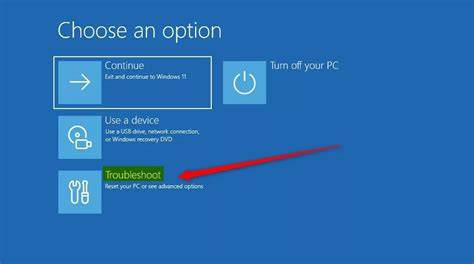
- Run Windows Update Troubleshooter: This tool can automatically detect and fix problems related to Windows Update. - Settings Path: Go to
Settings > Update & Security > Troubleshoot > Additional troubleshooters > Windows Updateand click onRun the troubleshooter. - Expected Result: The troubleshooter will either fix the issue or provide you with further steps to take. - Reset Windows Update Components: Manually resetting these can resolve many update issues. - Open Command Prompt as Administrator and enter these commands one by one: ``
cmd title="Command Prompt" net stop wuauserv net stop cryptSvc net stop bits net stop msiserver net start wuauserv net start cryptSvc net start bits net start msiserver`` - Expected Result: This should successfully reset the Windows Update components. - Check Proxy Settings: If you're using a proxy, ensure it's configured correctly. - Settings Path:
Settings > Network & Internet > Proxyand turn off any manual proxy settings if they’re not needed. - Expected Result: This should allow Windows Update to connect without restrictions.
How to Verify the Update is Successful
To confirm that the update has been applied successfully, follow these steps:
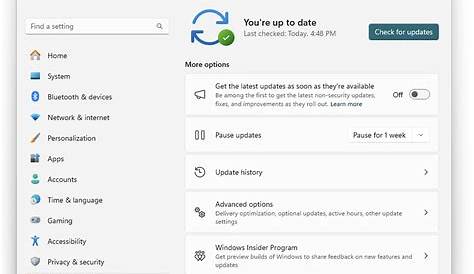
- Go to
Settings > Update & Security > Windows Update. - Click on
Check for updates. - If your system indicates that it is up to date, the update was successful. You may also check the update history by clicking on
View update historyto ensure that no errors occurred during the update process.
What to Do If the Error Persists
If you've tried the above methods and still see error 0x80244010, consider these additional steps:
- Disable Firewall Temporarily: Sometimes, firewalls block Windows Update. Disable it temporarily to check if that resolves the issue.
- Repair System Files: Corrupted system files can lead to update issues. Run the System File Checker to fix them: - Open Command Prompt as Administrator and type: ``
cmd title="Command Prompt" sfc /scannow`` - Expected Result: The scan will check for integrity violations and attempt to repair them. - Check Windows Services: Ensure that necessary services like
Windows UpdateandBackground Intelligent Transfer Serviceare running. - Perform a Clean Boot: This can help identify if background applications are interfering with the update process. Follow instructions for a clean boot via Microsoft’s official support site.
Conclusion
After following these troubleshooting steps, you should be able to resolve error 0x80244010 and successfully update your Windows 11 system. If the error continues to persist, consider reaching out to Microsoft Support for further assistance.