If you're a remote worker concerned that your software updates are delayed due to internet connection issues, it’s crucial to check your connection. This guide provides clear steps to verify your internet's functionality, check for software updates, and troubleshoot any problems that may arise. Following these steps will help ensure your software remains current without unnecessary delays.
How do I know if my internet connection is working? [prerequisites]
To confirm your internet connection is working, you need a few essentials:
- A functioning computer or device
- Access to your internet network (Wi-Fi or Ethernet)
Basic Connectivity Checks
- Open a web browser and visit a well-known website, such as www.google.com. If the page loads, your internet is likely working.
- Use a connection diagnostic tool. On Windows, run the built-in troubleshooter. On macOS, access "Network Diagnostics." For mobile, check network settings for diagnostics.
What steps should I follow to check for updates? [steps]
Once you've confirmed your internet connection, you can check for software updates on your devices. Here’s how to do it on various platforms:
Windows
- Click on the Start menu and select Settings.
- Go to Update & Security.
- Click on Windows Update and then select Check for updates. ``
cmd title="Windows Update Command" wuauclt /detectnow``
macOS
- Click on the Apple menu in the top left corner.
- Select System Preferences, then click on Software Update.
- Wait for the system to check for updates automatically.
Mobile Devices
- iOS: Go to Settings > General > Software Update and wait for it to check.
- Android: Open Settings > System > System update.
In each case, if updates are available, you should see an option to download and install them.
What should I do if I can't connect to the internet? [fix]
If you find that your internet connection is down, follow these troubleshooting steps:
- Restart your modem and router. Unplug them, wait about 30 seconds, and plug them back in.
- Check cables and connections. Ensure everything is plugged in securely.
- Connect to a different network. If possible, try another Wi-Fi network or use your mobile data.
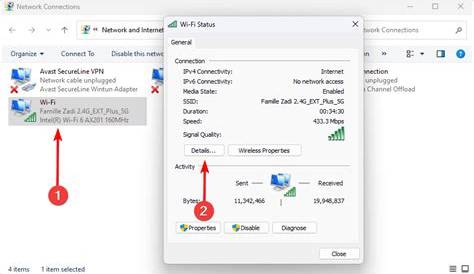
- Run network diagnostics. On Windows, access this through the settings in the Network & Internet section. On macOS, use the Network Utility.
If these steps don’t resolve the issue, you may need to contact your internet service provider.
How can I confirm updates are successfully installed? [completion]
After checking for updates and installing any that are available, confirm that they were successful with these steps:
- Check the update history. On Windows, go to Settings > Update & Security > Windows Update, then click on View update history. On macOS, go to System Preferences > Software Update to see the latest updates listed.
- Look for confirmation messages. Most systems will display a message indicating that updates have been installed successfully.
- Check the software version. For applications, find this in the About section of the app and compare it with the latest version on the developer's website.
What if my updates are still not working? [faq]
If you’ve confirmed your internet connection is fine, but updates are still failing, consider these steps:
- Check for error messages. Note any specific error codes and search for solutions online.
- Temporarily disable antivirus or firewalls. These can sometimes block updates.
- Clear update caches. On Windows, stop the Windows Update service, delete the contents of the SoftwareDistribution folder, and restart the service.
- Reinstall the application or software. If only one program is problematic, reinstalling it may resolve the issue.
Conclusion
By following these steps, you can ensure that your internet connection is stable and that your software updates run smoothly. Address any connection issues promptly, and keep your devices up to date to maintain optimal performance. If problems persist, consider reaching out for technical support or consulting online resources for further assistance.
Frequently Asked Questions
What should I do if my internet is slow?
If your internet is slow, try restarting your modem and router, checking for bandwidth usage from other devices, or contacting your service provider.
How often should I check for updates?
It's a good idea to check for updates at least once a month or whenever you notice issues with your software.
Are all updates important?
Not all updates are critical, but it's best to install security updates and major feature updates to keep your system safe and functioning well.
What if my device won't update even with a good connection?
If your device won't update despite a good connection, try clearing the update cache, checking for error messages, and consider reinstalling the problematic software.