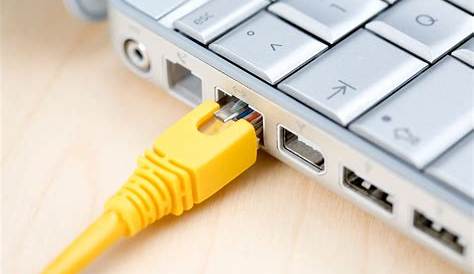
If you're facing intermittent internet connectivity during video calls, it may stem from your Ethernet connection. Common culprits include damaged cables or incorrect device settings. This guide will help you diagnose and resolve these issues effectively.
What are the signs that my Ethernet connection is failing?
Common symptoms of Ethernet issues include slow internet speeds, frequent disconnections, and lag during video calls. You might notice that your connection drops unexpectedly or that pages load slowly. Look for these signs:
- Slow speeds: Pages load slowly or buffering occurs during streaming.
- Frequent disconnects: The connection drops without warning.
- Error messages: Messages like "No Internet Access" or "Limited Connectivity".
No Internet Access
Limited Connectivity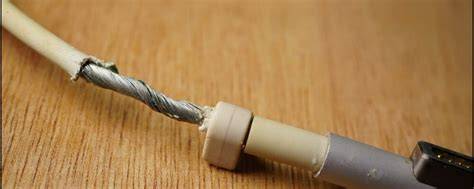
Before you start
This guide applies to Ethernet connections on Windows and Mac devices. You will need Administrator privileges to adjust network settings. Before proceeding, ensure your device is powered on and connected to the router.
How can I diagnose the source of my Ethernet problems?
To diagnose your Ethernet issues, follow these steps systematically:
- Check the physical connection: Ensure the Ethernet cable is securely plugged into both your device and the router.
- Inspect the Ethernet cable: Look for any visible damage like fraying or cuts. If possible, replace it with another cable to rule out issues.
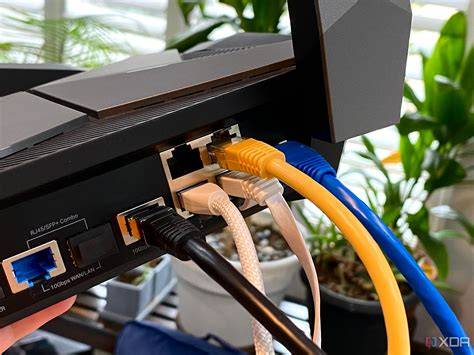
- Test different ports: If you have access to multiple ports on the router, try connecting your cable to a different port.
- Restart your devices: Power cycle your router and your computer or device. This can resolve temporary connectivity issues.
- Check network settings: On your device, ensure that the Ethernet adapter is enabled and configured correctly.
What are the best fixes for common Ethernet issues?
Here are effective solutions based on your diagnosis:
- Replace the Ethernet cable: If the cable is damaged, replace it.
- Change ports on the router: Connect your Ethernet cable to a different port to see if that resolves the issue.
- Adjust network settings: For Windows, follow this path: ``
text title="Settings path" Settings > Network & Internet > Ethernet`Select your connection and ensure it's enabled. On a Mac, use:`text title="Settings path" System Preferences > Network`` Select Ethernet and check the status. - Update network drivers: Ensure your network adapter drivers are up to date. You can do this via ``
cmd title="Command Prompt" Device Manager`for Windows or check`text title="Settings path" Software Update`` for Mac.
How do I verify that my Ethernet is working again?
After applying fixes, verify that your Ethernet connection is functioning properly:
- Check for internet access: Open a web browser and visit a few different websites. If they load without issues, your connection is likely restored.
- Run a speed test: Use an online speed test tool to check if your internet speed is back to normal.
- Check device settings: On Windows, run ``
cmd title="Command Prompt" ipconfig`to see if your Ethernet adapter has a valid IP address. On Mac, use`bash title="Terminal" ifconfig`` to check the same.
What can I do to prevent future Ethernet issues?
To minimize the chances of encountering Ethernet issues in the future, consider these tips:
- Regularly check your cables: Inspect Ethernet cables periodically for wear and tear.
- Keep your drivers updated: Regularly check for updates to your network drivers and operating system.
- Avoid physical stress on cables: Ensure cables are not bent sharply or positioned where they can be easily damaged.
- Use a surge protector: This can help protect your equipment from electrical surges that could damage network hardware.
Conclusion
If problems persist after these steps, consider consulting your Internet Service Provider for further assistance. Regular maintenance and checks can help prevent future Ethernet problems, ensuring smooth connectivity during your video calls.