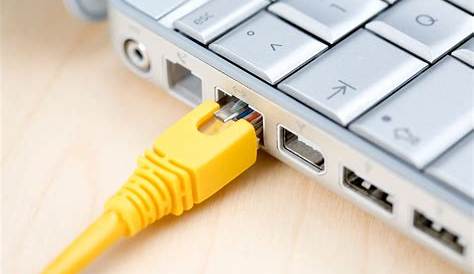
If you're experiencing frequent Ethernet disconnections during video calls, there are several common issues that can be resolved with straightforward troubleshooting. By identifying the cause of your connection problems, you can implement effective fixes to restore stability. Here’s how to get your connection back on track.
What are the signs of Ethernet connection problems?
You may notice several symptoms indicating Ethernet connection issues, such as slow internet speeds, frequent disconnections, or complete loss of internet access. These issues can be particularly frustrating during video calls, where a stable connection is crucial for clarity and consistency.
Symptom
Internet connection drops frequently during video callsThis can occur at random intervals or seem to happen more often under specific conditions, like high network traffic.
What could be causing these issues?
Before you start troubleshooting, consider potential causes that might be affecting your Ethernet connection. Here are a few common culprits:
- Faulty cables: A damaged or worn-out Ethernet cable can lead to interruptions.
- Router settings: Misconfigured settings can create connection problems.
- Network interference: Other devices on the same network may cause congestion.
- Hardware issues: Problems with your network card or router could disrupt connectivity.
Identifying the right cause can streamline your troubleshooting process.
How do I troubleshoot my Ethernet connection?
Start with these steps to resolve your Ethernet connection issues:
- Check your Ethernet cable for damage.
- Ensure that both ends of the cable are securely connected to your computer and router.
- Restart your computer and your router.
# Command to restart for Windows
shutdown /r /t 0- Open your network settings:
# Settings path for Windows
Control Panel > Network and Internet > Network and Sharing Center > Change adapter settings- Right-click on your Ethernet connection and select 'Disable', then right-click again and select 'Enable'.
- Adjust your router settings to factory defaults if the issue persists.
This will reset any custom configurations.
# Reset command for router (check manual for specifics)
Reset button on the device
These steps can often resolve common issues with Ethernet connections.
How can I verify that my connection is stable?
After troubleshooting, it's important to confirm that your Ethernet connection is functioning properly. Here’s how:
- Use a speed test website like Speedtest.net to check your connection speed.
- If your speeds are consistent and you can maintain a stable connection during video calls, it suggests the issue is resolved.
- Monitor your connection for any disconnections over time to ensure stability.
Expected results include consistent speed readings and no dropouts during calls.
What should I do if problems persist?
If you continue to experience Ethernet connection problems after troubleshooting, consider the following options:
- Check for software updates: Ensure your operating system and network drivers are up to date.
- Try a different Ethernet cable: If your current cable seems faulty, replace it to rule out that issue.
- Contact your internet service provider (ISP): They can help diagnose any issues on their end.
- Consider hardware replacement: If your router or network card is outdated or malfunctioning, it may need to be replaced.
Conclusion
If these steps do not resolve your Ethernet issues, consider reaching out to a professional or your ISP for further assistance. Regularly updating your hardware and checking your connections can help prevent future problems.
Frequently Asked Questions
What should I do if my Ethernet connection keeps dropping?
Follow the troubleshooting steps outlined, ensuring all cables are secure and undamaged. If the problem persists, check for software updates or contact your ISP.
How can I tell if my Ethernet cable is faulty?
Inspect the cable for visible damage and try using a different cable to see if the connection stabilizes.
Can network interference affect my Ethernet connection?
Yes, devices on the same network or nearby electronic devices can cause interference, leading to connection issues.
Is it worth investing in a new router?
If your router is several years old or frequently causes issues, upgrading to a newer model may provide better performance.