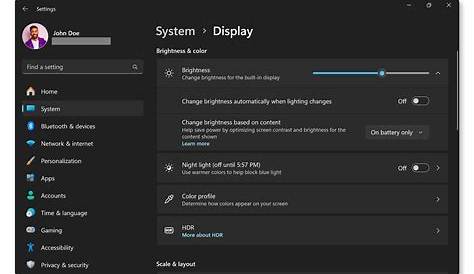
If you've recently upgraded to Windows 11 and want to enhance your gaming performance, adjusting your system settings can lead to better frame rates and smoother gameplay. This guide outlines practical steps to optimize your setup, ensuring a more enjoyable gaming experience.
What settings should I change in Windows 11 for gaming? [prerequisites]
Before starting, make sure you have:
- Windows 11 installed.
- Administrative privileges to change system settings.
To boost your gaming performance in Windows 11, enable the following key settings:
- Game Mode: This feature prioritizes gaming processes over background tasks. To enable it, go to Settings > Gaming > Game Mode and toggle it on.
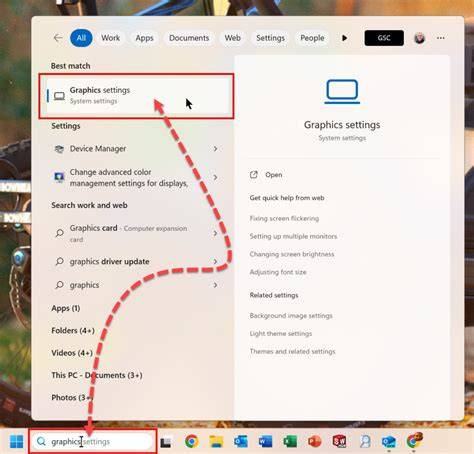
- Hardware Acceleration: This can improve performance in games that support it. Check your graphics settings in Windows and in your games to ensure this is enabled.
- Background Apps: Limiting background processes can free up resources. In Settings, navigate to Privacy & security > Background apps and disable apps you don’t need while gaming.
- Performance Options: Adjusting visual effects can also help. Right-click on the Start button, select System, then Advanced system settings. Under the Performance section, choose "Adjust for best performance" to disable unnecessary animations.
How can I adjust my graphics settings for better performance? [steps]
Optimizing in-game graphics settings is crucial for balancing visuals and performance. Here’s how to adjust them:
- Launch your game and go to the settings menu.
- Look for the graphics or video settings section.
- Adjust the following settings based on your hardware capabilities: - Resolution: Lowering this can greatly improve frame rates. - Texture Quality: Set this to medium if you experience lag; high settings require more video memory. - Shadow Quality: Reducing shadows can significantly boost performance without a major impact on visuals. - Anti-Aliasing: Turn this off or set it to a lower level to improve performance. - V-Sync: Disable it to reduce input lag unless screen tearing becomes an issue.
- Test the game after each change to see how performance is affected.
- Make incremental adjustments until you find the right balance between visuals and performance.
What software tools can help monitor and optimize performance? [completion]
To maximize your gaming experience, consider using performance monitoring tools. Here are a few recommended ones:
- MSI Afterburner: This tool allows you to monitor GPU usage, temperatures, and frame rates while gaming. You can also tweak your graphics card settings.
- Fraps: A lightweight tool that tracks frame rates in real time. It’s simple to use and shows how adjustments affect performance.
- HWMonitor: This software monitors your CPU and GPU temperatures and usage, helping you identify potential bottlenecks.
- Windows Task Manager: Press
Ctrl + Shift + Escto open it while gaming. You can check CPU and memory usage to see if these are maxing out during play.
What common pitfalls should I avoid when optimizing? [cautions]
While optimizing your system, be aware of these common mistakes:
- Over-optimizing: Reducing settings too much can make your game look worse without significant performance gains.
- Ignoring Updates: Always keep your graphics drivers and Windows updated. New updates can improve performance and fix bugs.
- Disabling Necessary Features: Turning off features like Game Mode or hardware acceleration can hurt performance. Only disable what you know won’t impact your gaming.
- Neglecting Cooling: Overheating can throttle performance. Ensure your system has good ventilation and consider cleaning dust from fans.
When should I consider upgrading my hardware instead? [faq]
If you’ve optimized your settings but still experience low frame rates or lag, it might be time to think about hardware upgrades. Signs that indicate a need for an upgrade include:
- Consistent Low Frame Rates: If your game struggles to maintain playable frame rates even on low settings.
- Frequent Crashes: If your system crashes or freezes during gaming sessions, it might indicate that your hardware cannot handle the demands.
- Aging Components: If your CPU or GPU is several generations old, newer games may not run well on them, even with optimized settings.
Conclusion
Begin by adjusting your system settings in Windows 11 and in your games to see immediate improvements. Use performance monitoring tools to track your progress and avoid common pitfalls that can hinder your gaming experience. If these adjustments don’t yield the desired results, consider looking into hardware upgrades for a more significant boost.
Frequently Asked Questions
What are the best graphics settings for performance?
Lowering resolution, reducing texture quality, and turning off anti-aliasing are usually the best initial steps.
How do I check my GPU performance?
Using tools like MSI Afterburner or the Windows Task Manager can help you monitor GPU usage and temperatures.
Is Game Mode necessary for gaming?
While not strictly necessary, enabling Game Mode can help optimize system resources for gaming.
When should I upgrade my gaming hardware?
If you consistently experience low frame rates or crashes despite optimizing settings, it might be time to consider an upgrade.