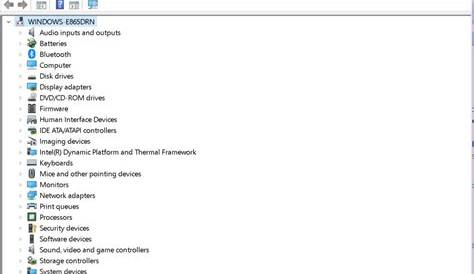
Frequent crashes on your computer are often caused by outdated or malfunctioning drivers. To resolve these issues, you need to identify the problem, update or reinstall the drivers, and then verify that the issue has been fixed. This guide will provide you with the necessary steps to stabilize your system and enhance its performance.
What are the signs of driver issues?
Common symptoms of driver problems include system crashes, error messages, and hardware malfunctions. You might encounter messages like the following:
Error: Device not foundThis indicates that the driver for a specific device, such as your graphics card or printer, isn’t functioning correctly. Other signs include peripherals not being recognized, a significant drop in performance, or unexpected behavior from hardware.
How do I know if a driver needs attention?
To check for driver updates, use the built-in tools on your computer. This process applies to Windows 10 and 11. You will need Administrator privileges to perform these checks.
- Open the Device Manager by right-clicking on the Start button and selecting
Device Manager. - Look for devices with a yellow triangle icon next to them, indicating a driver issue.
- Right-click on each device and select
Properties. Under theDrivertab, you can view the driver version and date. - To check for updates, right-click on the device and select
Update driver, then chooseSearch automatically for updated driver software. This will inform you if newer drivers are available.
What steps should I take to fix driver issues?
You can update or reinstall drivers using various methods. Here’s a step-by-step guide for updating via Device Manager and downloading directly from manufacturer websites.
Update Drivers via Device Manager
- Open Device Manager from the Start menu.
- Identify the device that needs an update by looking for the yellow triangle.
- Right-click the device and select
Update driver. - Choose
Search automatically for updated driver software.
If a new driver is found, it will install automatically.
Reinstall Drivers
- Open Device Manager.
- Right-click the problematic device and select
Uninstall device. - Confirm the uninstallation. Restart your computer after this step. Windows should automatically reinstall the driver upon reboot.
Uninstalling drivers could lead to temporary loss of device functionality until reinstallation occurs.
How can I confirm that the issue is fixed?
To verify that the driver issue has been resolved, perform the following checks:
- After updating or reinstalling the driver, restart your computer.
- Check Device Manager again for any warning icons next to the device.
- Test the functionality of the device (e.g., if it’s a printer, try printing a document).
If the device functions correctly and no error messages appear, the issue is likely fixed.
What if the problem persists?
If you still experience driver issues after following the steps above, consider these options:
- Revisit Device Manager and check for any other devices with issues.
- Search online forums specific to your device or operating system for similar problems.
- Look for driver rollbacks if new drivers are causing issues by accessing the
Drivertab in the device properties. - If necessary, consult professional services or contact the manufacturer for further assistance.
Conclusion
After resolving driver issues, keep your system updated regularly to prevent future problems. Regularly check for driver updates and utilize the built-in tools available in your operating system. This maintenance can enhance your computer's stability and performance.