If you're experiencing Wi-Fi connectivity issues while working remotely, several common factors may be at play. Fortunately, you can often resolve these problems quickly with some straightforward troubleshooting steps. This guide will help you identify the issue and restore your internet connection.
What are the most common reasons for Wi-Fi connectivity issues?
Wi-Fi connectivity problems can arise from various issues. Here are some common reasons:
- Router malfunctions: Your router might be facing hardware failures or software glitches, leading to dropped connections.
- Signal interference: Other electronic devices, such as microwaves or cordless phones, can disrupt your Wi-Fi signal, particularly if they operate on the same frequency.
- Device settings: Sometimes, the issue lies with your device's network settings, which might be misconfigured.
- Network congestion: If multiple devices are connected to the same network and consuming a lot of bandwidth, this can slow down or disrupt your connection.
- Distance from the router: Being too far from your router or having physical obstructions like walls can weaken your signal.
- Outdated hardware: Older routers may not support the latest Wi-Fi standards, leading to connectivity issues.
How do I troubleshoot my Wi-Fi connection?
To troubleshoot your Wi-Fi connection, follow these steps:
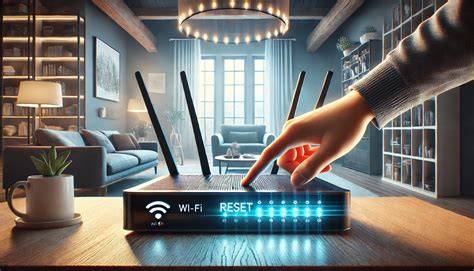
- Restart your router. This can resolve many temporary issues. ``
text title="Command to restart router" 1. Unplug the power cable from your router. 2. Wait for about 10 seconds. 3. Plug the power cable back in.`` - Check device settings. Ensure your Wi-Fi is enabled on your device and that you're connected to the correct network.
- Test for interference. Move any electronics that could interfere with your Wi-Fi away from the router.
- Reconnect your device. Disconnect your device from the network and reconnect. This can help refresh the connection.
- Run a speed test. Use an online speed test tool to check if your internet speed is within expected ranges.
How can I confirm if the problem is with my device or the network?
To determine if the issue is with your device or the network, you can perform the following tests:
- Connect another device. If possible, connect another device to the same Wi-Fi network. If that device can connect successfully, the issue likely lies with your original device.
- Use a wired connection. If you have an Ethernet cable, connect your device directly to the router. If the connection works, the problem may be with your Wi-Fi.
- Check other networks. Attempt connecting your device to a different Wi-Fi network. If it connects without issues, your original network is likely the problem.
What can I do to prevent Wi-Fi connectivity issues in the future?
To maintain a stable Wi-Fi connection, consider these best practices:
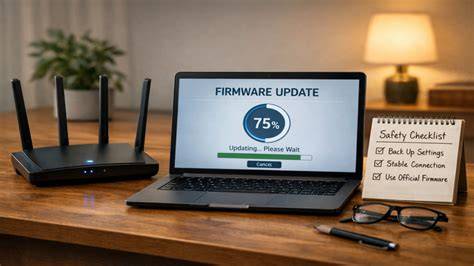
- Regularly update your router firmware. Manufacturers often release updates that can enhance performance and security.
- Optimize router placement. Position your router in a central location, away from walls and obstructions, to maximize signal coverage.
- Limit connected devices. Disconnect devices that you aren't using to reduce congestion on the network.
- Use a dual-band router. If you have multiple devices, consider using a dual-band router to better distribute the load between 2.4 GHz and 5 GHz bands.
What should I do if these steps don’t work?
If you've tried all the above steps and still experience connectivity issues, consider the following:
- Contact your ISP. Reach out to your Internet Service Provider to check if there are any outages or problems on their end.
- Reset your router to factory settings. If you suspect a serious configuration issue, you can reset your router. However, this will erase all your settings, so use this as a last resort. > Warning: Make sure you have the necessary information to set up your network again before resetting.
- Consider hardware replacement. If your router is old or consistently malfunctioning, it might be time to invest in a new one.
Conclusion
If you follow these steps and still experience issues, contacting your ISP or considering a new router may be necessary. Regular maintenance and awareness of your network's performance can help prevent future connectivity problems.
Frequently Asked Questions
What should I do if my Wi-Fi keeps disconnecting?
Try restarting your router and checking for interference from other devices. Ensure your device settings are correct, and consider connecting to a different network to see if the problem persists.
How can I improve my Wi-Fi signal strength?
Consider relocating your router to a more central position, reducing interference from other devices, and using a Wi-Fi extender if needed.
Is there a way to check if my internet speed is slow?
Yes, you can use online speed test tools like Speedtest.net to measure your internet speed and compare it with what your ISP promises.
What should I do if my device won't connect to Wi-Fi?
Check if Wi-Fi is enabled on your device, forget the network and reconnect, or try connecting another device to see if the issue is with your device or the network.