If your Windows PC frequently crashes, runs slowly, or struggles with software installations, there are practical solutions available. This guide outlines common software problems and provides actionable steps to resolve them. By following these recommendations, you can quickly get your system back on track.
What are the most common software problems on Windows PCs?
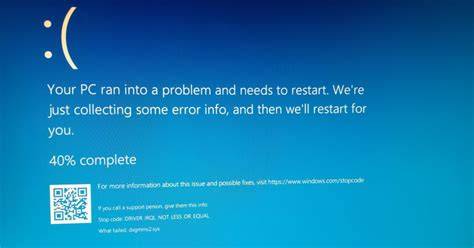
Users commonly face software crashes, slow performance, and installation errors. For example, you may encounter a program freezing unexpectedly, notice your system taking longer to respond than usual, or receive error messages when trying to install new software.
Symptom:
Error: "Application has stopped working"This error can occur during routine tasks or when launching specific applications.
Why do these software problems occur?
These software problems often arise from a few common causes:
- Outdated drivers that do not support newer software.
- Conflicts between different applications or system processes.
- Malware infections that disrupt normal operation.
To help mitigate these issues, keep your system updated and perform regular malware scans.
How can I fix these software problems?
To address common software issues, follow these steps:
Before You Start
- This guide applies to Windows 10 and Windows 11.
- You need Administrator privileges to perform these actions.
- Back up important data before proceeding.
- Ensure your device is connected to the internet for updates.
- Update Drivers - Open Device Manager by right-clicking the Start button and selecting it. - Expand categories, right-click on devices, and select 'Update driver'. ``
powershell title="PowerShell (run as Administrator)" Get-WindowsUpdate`` - Restart your PC after updating. - Check for Software Updates - Go to Settings > Update & Security > Windows Update. - Click 'Check for updates' and install any available updates.
- Run a Malware Scan - Open Windows Security by searching for it in the Start menu. - Click on 'Virus & threat protection' and select 'Quick scan'. ``
powershell title="PowerShell" Start-MpScan -ScanType QuickScan`` - Follow any prompts to remove identified threats. - Use Safe Mode - Restart your PC and press F8 repeatedly before Windows starts. - Select 'Safe Mode' from the menu and troubleshoot the problematic software.
How can I verify that the problems are resolved?
To confirm that your issues are fixed:
- Check that the previously problematic software opens without errors.
- Monitor system performance over a few days to ensure it runs smoothly.
- Look for any error messages after updates or scans.
If everything operates normally, the fixes were successful.
What can I do to prevent these issues in the future?
To avoid software problems in the future:
- Regularly update your operating system and software to the latest versions.
- Conduct routine maintenance, such as disk cleanup and defragmentation.
- Use reliable antivirus software and keep it updated.
- Be cautious when installing new software and always check compatibility with your system.

Conclusion
By following these steps, you can effectively resolve and prevent software issues on your Windows PC. Regular maintenance and staying updated are essential for a smoother experience. If problems persist, consider exploring system settings further or consulting specialized resources.