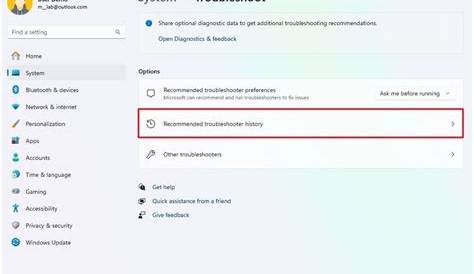
If your Windows 11 system is freezing, there are several steps you can take to resolve the issue. Common fixes include updating Windows and drivers, checking for software conflicts, and performing system scans. This guide will provide a systematic approach to troubleshoot and fix these problems effectively.
What are the signs that my Windows 11 is freezing?
You might notice several signs indicating that your Windows 11 system is freezing. These include applications becoming unresponsive, where you cannot click or type anything; the system may fail to respond to commands, leaving you unable to access programs or files. You might also experience delayed input, where there’s a significant lag between your actions and the system's response, or even the blue spinning circle that signifies the system is busy.
If you encounter any of these symptoms regularly, it's likely that your system is freezing.
Applications are unresponsive, delayed input, blue spinning circleWhat might be causing my Windows 11 to freeze?
Several factors can contribute to freezing issues in Windows 11. Software conflicts are common, especially if you recently installed new applications or updates that may not be compatible with your existing programs. Hardware issues, like insufficient RAM or a failing hard drive, can also lead to system freezes. Additionally, running too many applications simultaneously can overwhelm your system resources, causing it to freeze.
It's crucial to analyze your system's recent changes and resource usage to identify the root cause.
How do I fix freezes in Windows 11?
To address freezing issues, follow these steps:
- Update Windows - Go to Settings > Windows Update > Check for updates. - If updates are available, install them and restart your computer.
- Update Device Drivers - Right-click on the Start menu and select Device Manager. - Expand categories to find your device, right-click it, and select Update driver. - Choose Search automatically for updated driver software.
- Check for Software Conflicts - Open Task Manager by pressing
Ctrl + Shift + Esc. - Identify any applications using high resources, right-click, and select End task to close them. - Perform a System Scan - Open Command Prompt as Administrator. - Run this command: ```cmd title="Command Prompt"
sfc /scannow
   - Wait for the scan to complete and follow any prompts.

5. **Free Up Disk Space**
   - Open **Settings** > **System** > **Storage**.
   - Check for large files or applications that you can uninstall to free up space.
How can I verify that the freezing issue is resolved?
To confirm that the freezing issue is fixed, monitor your system's performance during regular use. Pay attention to whether applications respond promptly and if there are any delays in input. You can also revisit the Task Manager to check resource usage; if CPU and memory usage remain consistently low while running your usual applications, that’s a good sign.
If issues persist, you may need to revisit your troubleshooting steps or consider further hardware diagnostics.
What can I do to prevent future freezes in Windows 11?
To avoid experiencing freezes in the future, consider the following best practices:
- Regularly update your Windows and drivers to ensure compatibility and performance.
- Keep your applications organized, uninstalling those you no longer use.
- Periodically check for and clean up unnecessary files using tools like Disk Cleanup.
- Monitor your system resources via Task Manager to avoid overloading your CPU and RAM.
- Consider upgrading your hardware (like increasing RAM) if you frequently run demanding applications.
Conclusion
After following these troubleshooting steps, your Windows 11 system should run more smoothly. If freezes continue, further investigation into hardware issues may be necessary. Keep your system updated and maintain regular checks to prevent future problems.