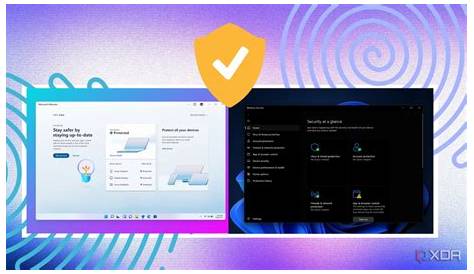
Windows Security Hub is a central tool in Windows for managing your security settings and alerts. Its purpose is to help you monitor your system's security status and respond to potential threats, making it easier to protect your data without needing extensive technical knowledge.
What is Windows Security Hub?
Windows Security Hub is a user-friendly interface in Windows that consolidates various security features and alerts. It allows you to manage your device's security settings in one place, providing an overview of your system's health, including virus protection, account security, and firewall settings. For example, by using the Security Hub, you can quickly check if your protections are active and if any actions are needed to secure your device.
How does it work with other security features?
The Windows Security Hub integrates with built-in Windows security features, offering a comprehensive security approach. It works closely with Windows Defender, which provides antivirus protection. When you access the Security Hub, you can check if Windows Defender is up to date and actively scanning your system.
Additionally, the hub connects to the Windows Firewall, which monitors your network traffic. If the firewall detects unusual activity, it alerts you through the Security Hub, helping you respond quickly. This interconnectedness ensures that all aspects of your security function together effectively.
What benefits does it offer for users?
Using Windows Security Hub simplifies security management. It provides a dashboard where you can view your security status at a glance, eliminating the need to navigate through various settings to determine if your system is protected.
It also offers real-time alerts about potential threats or required actions, enabling prompt responses. For instance, if Windows Defender detects a virus, the hub will notify you immediately, allowing you to take steps to remove it.
Lastly, the hub offers straightforward recommendations for security management, making it accessible even for those who are not tech-savvy.
Common misconceptions about Windows Security Hub
Many users have misconceptions about Windows Security Hub. One common myth is that it is only for advanced users. In reality, it is designed to be user-friendly and accessible for everyone, including those without technical expertise.
Another misconception is that using the Security Hub guarantees total security. While it helps you manage your security settings and alerts, it does not eliminate all risks. You still need to practice safe online habits and stay informed about potential threats.
How to access and navigate Windows Security Hub
Accessing Windows Security Hub is straightforward. Here’s how to do it:
- Click on the Start menu.
- Type
Windows Securityin the search bar and press Enter. - The Windows Security Hub will open, displaying the main dashboard.
Once inside, you can navigate through sections like Virus & threat protection, Account protection, and Firewall & network protection. Each section provides detailed information and options to adjust settings as needed.
Conclusion
Now that you have a clearer understanding of Windows Security Hub, take the time to explore its features on your device. Familiarize yourself with its functionalities and regularly check for alerts to ensure your business data remains secure.
Frequently Asked Questions
Is Windows Security Hub available on all Windows versions?
Windows Security Hub is available on Windows 10 and Windows 11. Older versions may not have this integrated feature.
Can I customize the notifications I receive from Windows Security Hub?
Yes, you can adjust notification settings in the Windows Security app to manage how and when you receive alerts.
Does using Windows Security Hub mean I don't need additional security software?
While Windows Security Hub provides solid protection, additional software may still be beneficial depending on your specific needs.
What should I do if I receive a security alert?
Follow the prompts in Windows Security Hub to address the alert, which may include running a security scan or adjusting settings.