If your computer is malfunctioning after a recent Windows update, uninstalling that update can help restore normal functionality. This guide will walk you through identifying the problematic update and removing it to resolve issues like crashes, slow performance, or software incompatibility. Follow these simple steps to get your system back on track.
How do I know which update is causing the problem? [prerequisites]
To identify the problematic update, check your update history and correlate any symptoms with the timing of recent updates.
- Ensure your Windows account has administrator privileges.
- Note the symptoms you are experiencing, such as application crashes or system freezes.
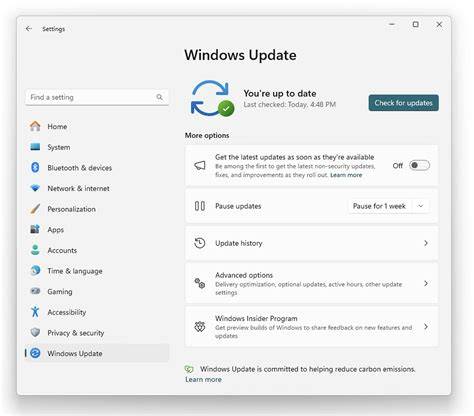
- Open the Settings app, navigate to "Update & Security," and click on "Windows Update."
From there, select "View update history" to see the updates installed on your system and the dates they were applied. Look for updates that coincide with when your problems began. If you notice any recent updates that align with the onset of your issues, that's likely the culprit.
What are the steps to uninstall a Windows update? [steps]
Once you've identified the problematic update, follow these steps to uninstall it:
- Open the Settings app by pressing
Windows + I. - Click on "Update & Security."
- Select "Windows Update" from the left sidebar.
- Click on "View update history."
- Select "Uninstall updates" at the top of the page.
- In the list of installed updates, find the update you want to remove.
- Select the update and click on the "Uninstall" button. ``
text Settings path: Update & Security > Windows Update > View update history > Uninstall updates`` - Follow the prompts to confirm the uninstallation.
After the process completes, restart your computer and check if the issues have been resolved.
What should I do if uninstalling the update doesn't fix the problem? [completion]
If uninstalling the update doesn't resolve your issues, consider these alternative troubleshooting methods:
- Perform a system restore to revert your computer to a previous state. Search for "System Restore" in the Start menu, then follow the prompts to choose a restore point before the problematic update was installed.
- Check for additional updates that may address bugs related to the issue.
- Run the Windows Troubleshooter, which can identify and fix common problems automatically.
If these steps don't resolve the issue, you might need to consult with a professional or seek help from Microsoft support.
How can I avoid future problematic updates? [cautions]
To help prevent future issues with Windows updates, consider adjusting your update settings:
- Open the Settings app and go to "Update & Security."
- Under "Windows Update," you can choose to pause updates temporarily.
- To avoid automatic installations, look for the option to "Change active hours" or set your device to notify you before installing updates.
- Stay informed about updates by checking forums or tech news sites for reports on problematic updates.
By taking these precautions, you can minimize the chances of encountering issues with future updates.
What if I can't find the update I want to uninstall? [faq]
If you can’t find the update you want to uninstall, try these steps:
- Ensure you are looking in the right section by going to "View update history" and then "Uninstall updates."
- Check if the update was a cumulative update, which combines several updates into one package. In this case, you may not see individual updates listed.
- If the update is missing, consider running the Windows Update Troubleshooter to check for issues that may prevent updates from appearing properly.
Conclusion
After uninstalling the problematic update, monitor your system for any signs of improvement. If you continue to experience issues, try the additional troubleshooting steps mentioned. Adjusting your update settings can also help you avoid similar problems in the future.
Frequently Asked Questions
Can I uninstall updates using Command Prompt?
Yes, you can use Command Prompt to uninstall updates by using the `wusa` command followed by the update's KB number. For example: `wusa /uninstall /kb:123456`.
Will uninstalling an update delete my personal files?
No, uninstalling updates typically does not affect personal files. However, it’s always good practice to back up important data.
How long does it take to uninstall a Windows update?
The time it takes to uninstall an update can vary, but it usually takes a few minutes.
What if my computer won’t start after an update?
If your computer doesn’t start, you may need to boot into Safe Mode and uninstall the update from there.