A Windows 11 build number is a unique identifier for a specific version of the Windows 11 operating system. It reflects updates and changes made to the OS, indicating the enhancements, fixes, and features included in that version, which helps you understand how it may affect your user experience.
What is a Windows 11 build number?
The build number of Windows 11 is a numerical designation that specifies the particular release of the operating system you are using. It typically consists of a series of digits, such as 22000.194, where the first part indicates the major version and the subsequent digits represent updates and patches. For example, if you see the build number 22000.194, it means you are on the 2021 release of Windows 11 with the 194th update applied.
Why are build numbers important?
Build numbers are significant because they inform you about the specific features, improvements, and security updates included in your operating system. For instance, running a build released before a particular security patch may put your system at risk due to unresolved vulnerabilities. Additionally, certain features might only be available in specific builds, which can impact your user experience. For example, a new UI element may be introduced in build 22000.282 that wasn't present in build 22000.194.
How to find your Windows 11 build number
To locate your Windows 11 build number, follow these steps:
- Click on the Start button or press the Windows key on your keyboard.
- Select Settings from the menu.
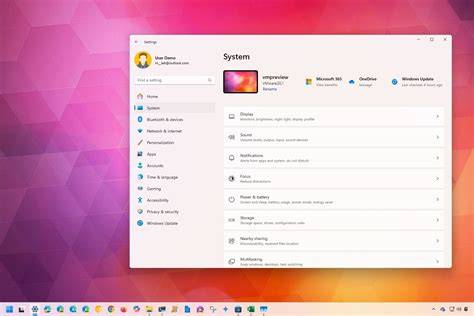
- In the Settings window, click on System.
- Scroll down and select About.
- Look for the Windows specifications section, where your build number will be listed next to OS build.
This process gives you quick access to your current build, allowing you to stay informed about your system version.
Common misconceptions about build numbers
A common misconception is that the build number only reflects the operating system's stability or performance. While a higher build number often signifies more recent updates, it doesn't necessarily mean it's the best choice for every user. Newer builds can introduce bugs or issues that weren't present in older versions. Another misunderstanding is that you must always be on the latest build for optimal security. While staying updated is generally advisable, some users may prefer to wait for a more stable release, especially if they rely on specific software that may not be compatible yet.
When to be concerned about your build number
You should be cautious about your build number if you experience issues such as system crashes, performance problems, or if certain features are not functioning as expected. If your build number is significantly outdated, it may lack critical security patches that protect your system. In such cases, it’s wise to consider updating to a newer build. Also, if you encounter error messages related to your OS version, it may indicate that your current build is not supported or has known problems.
Conclusion
If you're curious about your Windows 11 experience, regularly checking your build number can help you stay informed about system updates and changes. Keeping your system up to date is generally a good practice, but be aware of potential issues with newer builds. Make sure to troubleshoot or seek updates if you encounter problems.