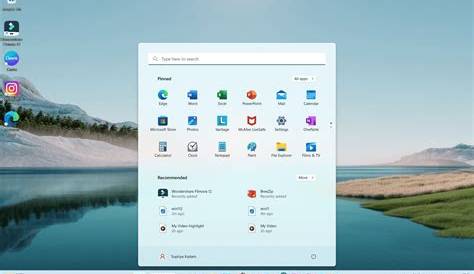
The latest version of Windows 11 is a significant update that introduces various enhancements and features aimed at improving user experience. This version focuses on performance, interface updates, and new applications to meet users' needs more effectively.
What are the key features of the latest version?
The latest version of Windows 11 includes several notable features and improvements. Performance has been enhanced, resulting in faster boot times and improved responsiveness. The Snap Layouts feature has been refined, making it easier to organize windows on your desktop. New apps, such as Microsoft Teams, are integrated directly into the taskbar for easy access to communication. Additionally, there are aesthetic updates, including rounded corners and a refreshed icon set that modernizes the overall look of the operating system. Other improvements include better multitasking capabilities and enhanced security features.
How does it compare to previous versions?
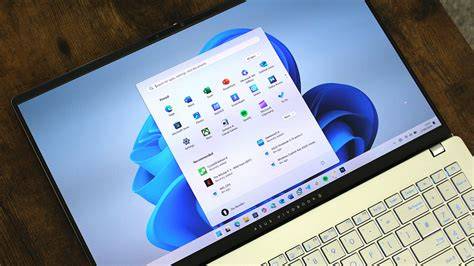
When comparing the latest version of Windows 11 to earlier versions, several key differences stand out. For instance, Windows 10 featured a more traditional Start Menu, while Windows 11 has a centered Start Menu that emphasizes a streamlined design. If you used Windows 10, you might find the Widgets feature in Windows 11 quite different, as it offers personalized news and updates in a more accessible format. Additionally, gaming improvements, such as DirectStorage for faster load times and enhanced graphics, set this version apart from its predecessors.
Who can use the latest version?
To run the latest version of Windows 11, your device needs to meet specific system requirements. Minimum requirements include a compatible 64-bit processor, at least 4 GB of RAM, and 64 GB of storage. Your device must also support Secure Boot and TPM version 2.0 for security purposes. If you're currently using Windows 10, you should be able to upgrade for free, provided your hardware meets these specifications. However, older devices that lack these capabilities will not be eligible for the update.
How do I update to the latest version?
Updating to the latest version of Windows 11 is straightforward. Here’s how to do it:
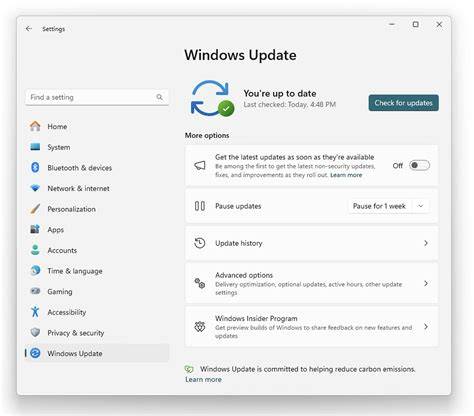
- Open the Settings app on your device.
- Click on Windows Update.
- Select Check for updates.
- If the latest version is available, you’ll see an option to download and install it.
- Follow the on-screen prompts to complete the installation.
- Restart your device if prompted.
Make sure to back up your important files before starting the update process.
What are users saying about the update?
User feedback on the latest version of Windows 11 has been mixed. Many users appreciate the aesthetic changes and enhanced performance, but some have raised concerns about compatibility issues with older applications and hardware. While the new interface and features like Snap Layouts receive praise, some users have experienced bugs, particularly in early updates. It's advisable to stay informed about future updates that may address these issues.
Conclusion
To get the most out of your Windows experience, consider updating to the latest version if your device is compatible. Familiarize yourself with the new features and improvements to enhance your computing tasks. Keep an eye on user feedback and updates that may further refine your experience.
Frequently Asked Questions
What are the new apps included in the latest version?
The latest version includes integrated apps like Microsoft Teams, which is positioned in the taskbar for easy access.
Can I upgrade from Windows 8 to Windows 11?
Upgrading directly from Windows 8 to Windows 11 is not supported; you would need to upgrade to Windows 10 first.
What are the performance improvements in the latest version?
Users have noted faster boot times and improved application responsiveness compared to previous versions.
Are there any known bugs in the latest version?
Some users have reported compatibility issues with older applications and hardware, which Microsoft is actively working to address.