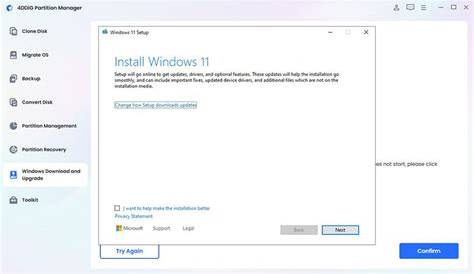
Windows 11 is the latest operating system from Microsoft, and it has specific hardware requirements that your PC must meet to install and run it effectively. Knowing whether your system is compatible is essential for a smooth upgrade experience.
What are the minimum system requirements for Windows 11?
To run Windows 11 smoothly, your PC must meet the following minimum hardware specifications:
- Processor: A compatible 64-bit processor with at least 1 GHz clock speed and a minimum of two cores.
- RAM: At least 4 GB of RAM.
- Storage: A minimum of 64 GB of available storage.
- System firmware: UEFI, Secure Boot capable.
- TPM: Trusted Platform Module version 2.0.
- Graphics card: DirectX 12 compatible graphics with a WDDM 2.0 driver.
- Display: >9” with HD Resolution (720p) or better.
For example, if you have a system with an Intel Core i5 processor, 8 GB of RAM, and 256 GB SSD, you should meet the requirements for Windows 11.
How to check if your PC meets the requirements?
You can easily check your PC's compatibility with Windows 11 using the PC Health Check tool. Here’s how to do it:
- Download the PC Health Check tool from the official Microsoft website.
- Install and open the application.
- Click on the
Check nowbutton. - Review the results provided by the tool.
If your PC is compatible, you'll see a confirmation message. If not, the tool will specify which requirements your PC does not meet, allowing you to make informed decisions about necessary upgrades.
Why is TPM and Secure Boot essential for Windows 11?
TPM (Trusted Platform Module) and Secure Boot are crucial for the security features in Windows 11. TPM is a hardware-based security feature that protects sensitive data, such as encryption keys and passwords. It ensures your device's firmware remains untampered and provides a secure environment for applications.
Secure Boot prevents unauthorized software and malware from loading during the boot process. If you attempt to start your PC with an altered operating system, Secure Boot will block it, reducing the risk of malware infections. Without these features, your device could be more vulnerable to attacks.
What if my PC doesn't meet the requirements?
If your PC doesn’t meet the Windows 11 requirements, you have several options:
- Upgrade Hardware: Consider upgrading components like the CPU, RAM, or adding a TPM chip if your motherboard supports it.
- Continue with Windows 10: You can keep using Windows 10, which will receive support until October 14, 2025.
- Explore Alternative Solutions: If upgrading isn't feasible, consider a new PC that meets Windows 11's specifications or look into lightweight operating systems that run more efficiently on older hardware.
Common misconceptions about Windows 11 requirements
There are several misconceptions regarding Windows 11 system requirements. One common belief is that all Intel processors from recent years are compatible; however, only specific models from Intel's 8th generation and later are supported. Some users think they can bypass the TPM and Secure Boot requirements, but these are mandatory for Windows 11’s security features. Another misconception is that simply having enough RAM or storage means your PC is ready for Windows 11, but overall system architecture compatibility is also necessary.
Conclusion
Now that you understand the requirements for Windows 11, you can assess whether your current setup is adequate. If your system falls short, consider your upgrade options or sticking with Windows 10 for the time being. Being informed will help you make the best decision for your computing needs.